Printer
1. 🔑 Login
When first opening the app, you will enter the login screen:
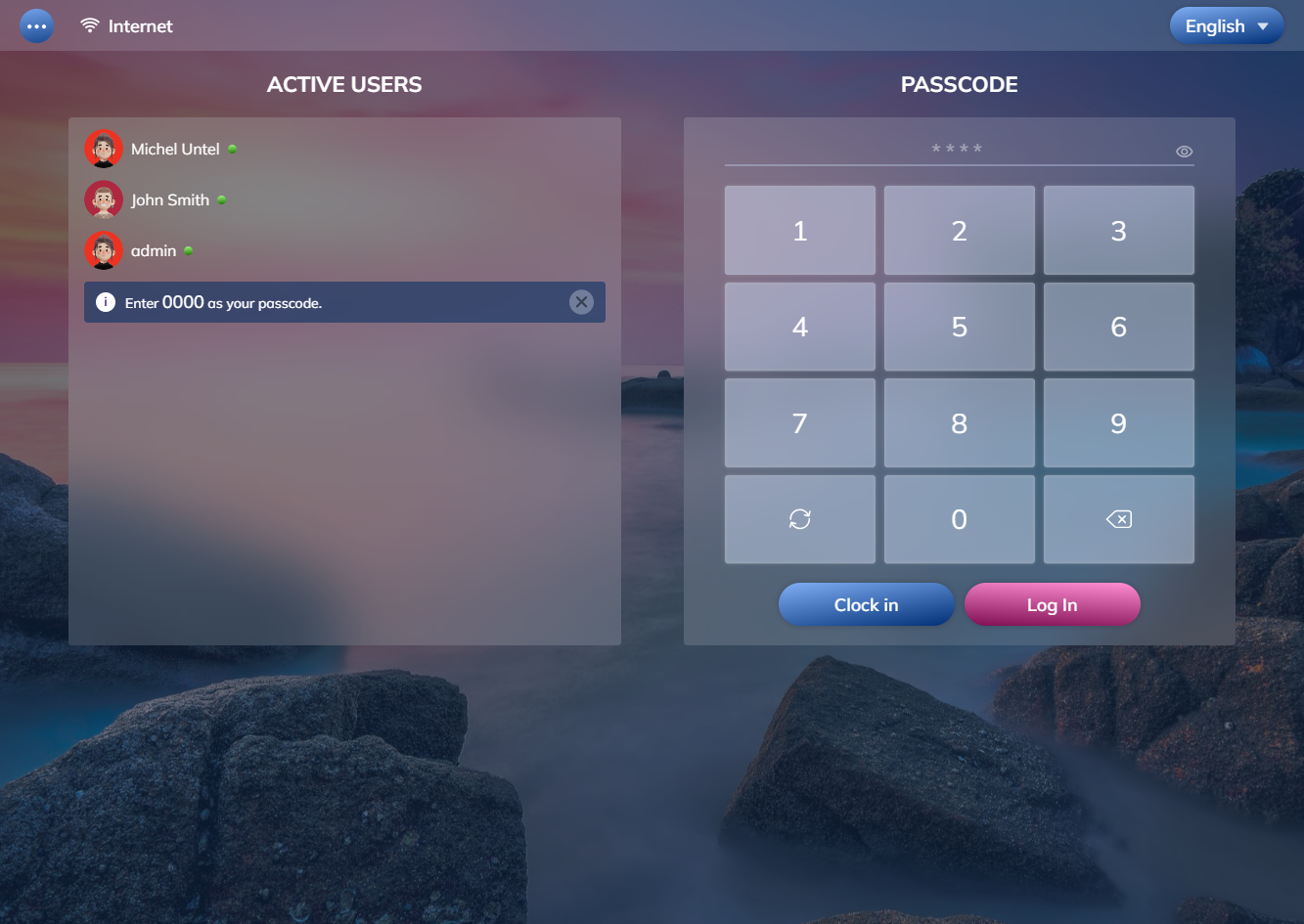
Please enter "1111" as your passcode and click the "Log In" button. You will be navigated to the main screen with sample table area and side menu in the left:
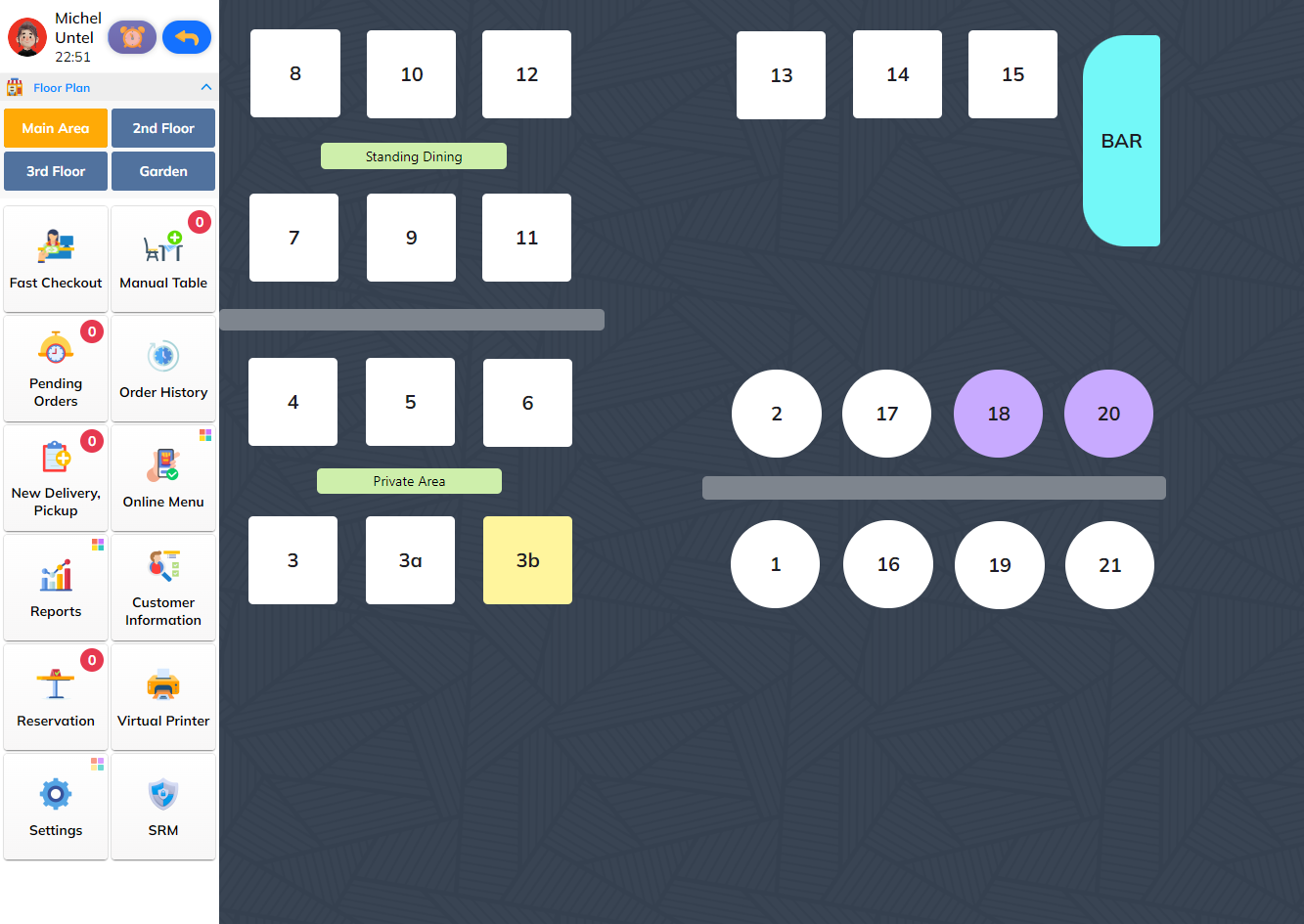
2. Select printer settings
In the menu list on the left, select the "Settings" button.
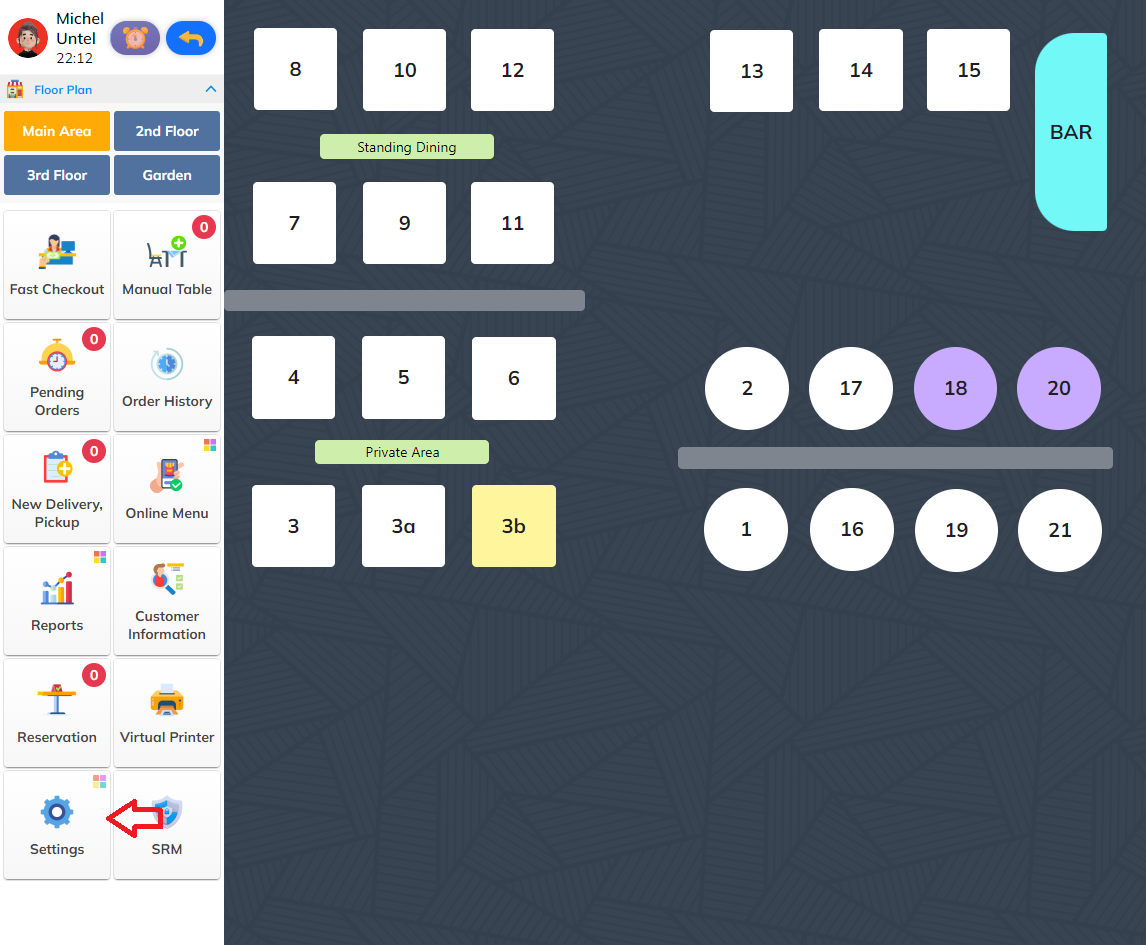
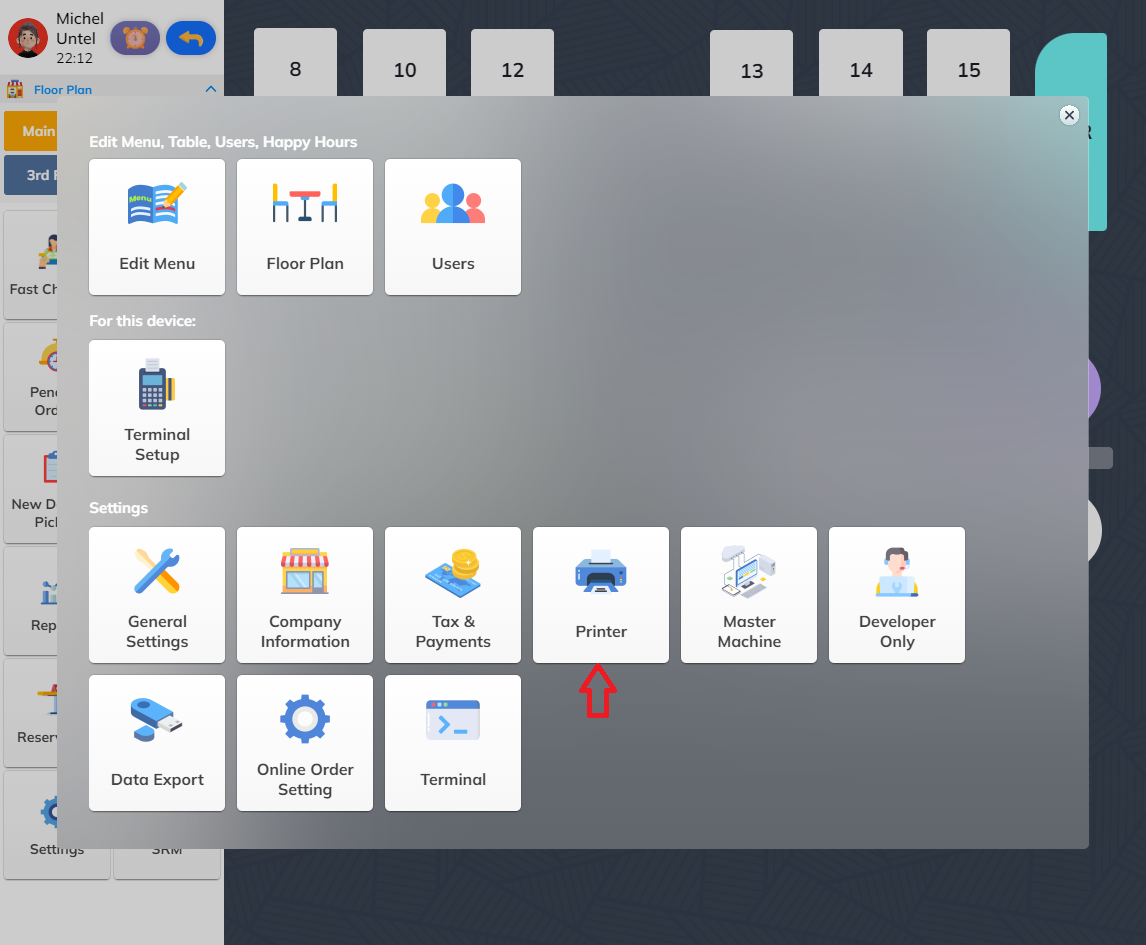
Then select Printer to enter Printer Setting.
3. Create Printer
Here you can create or delete a printer.
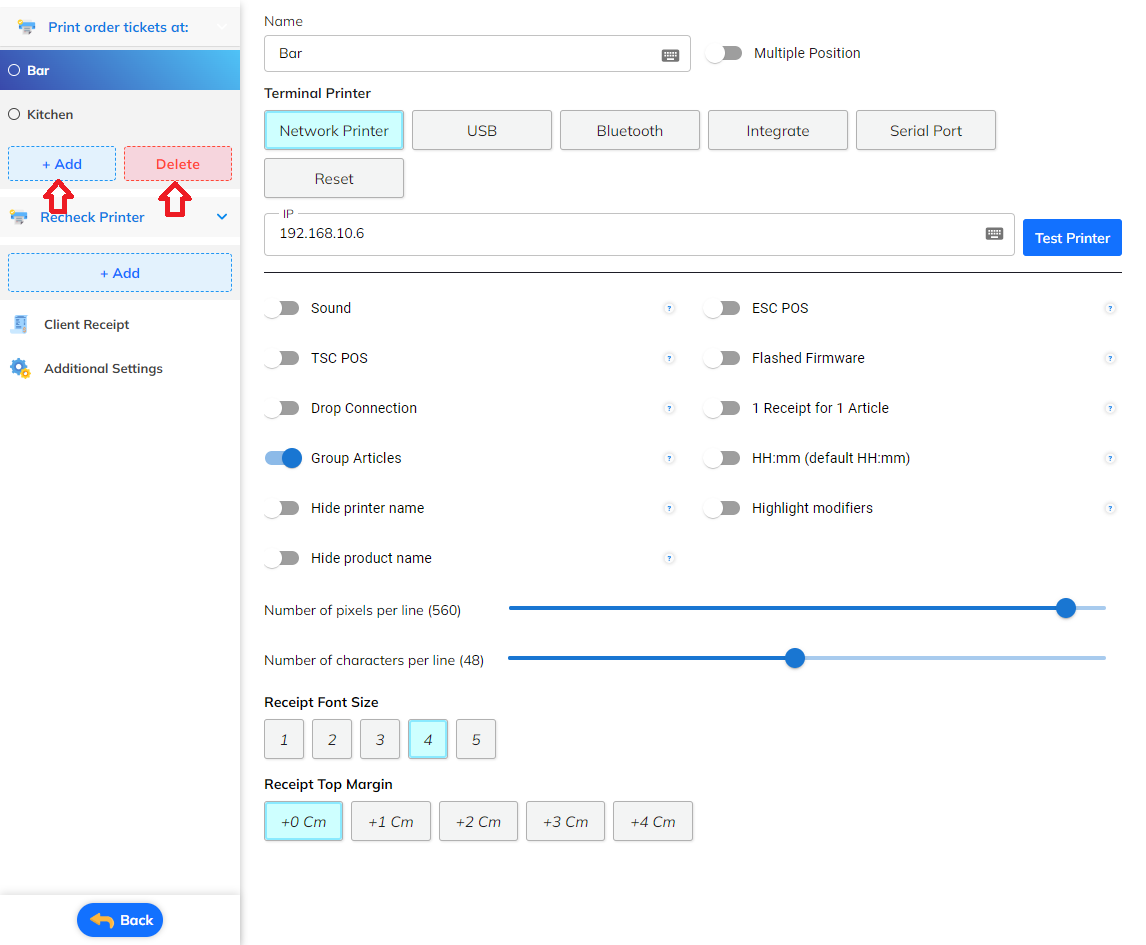
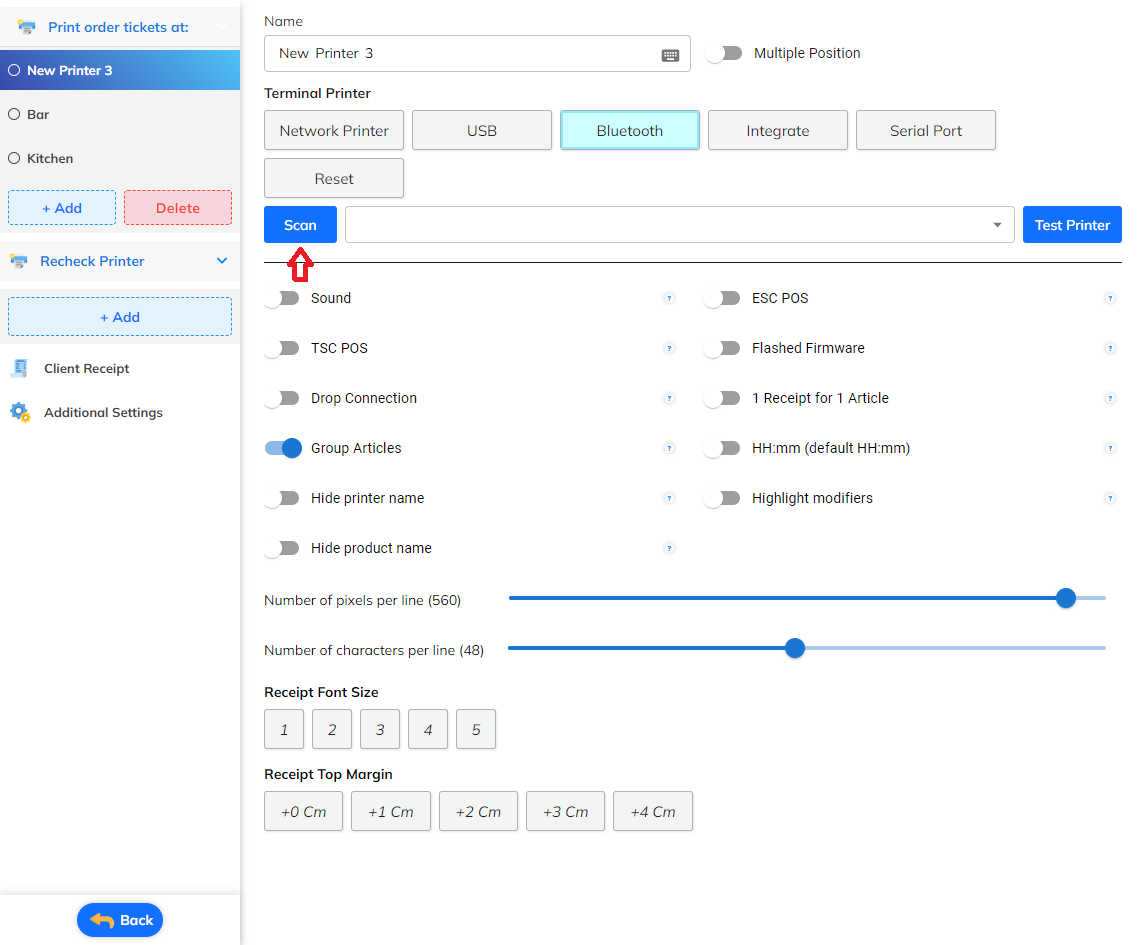
To add a printer select "Add". After adding a new printer you can name that printer.
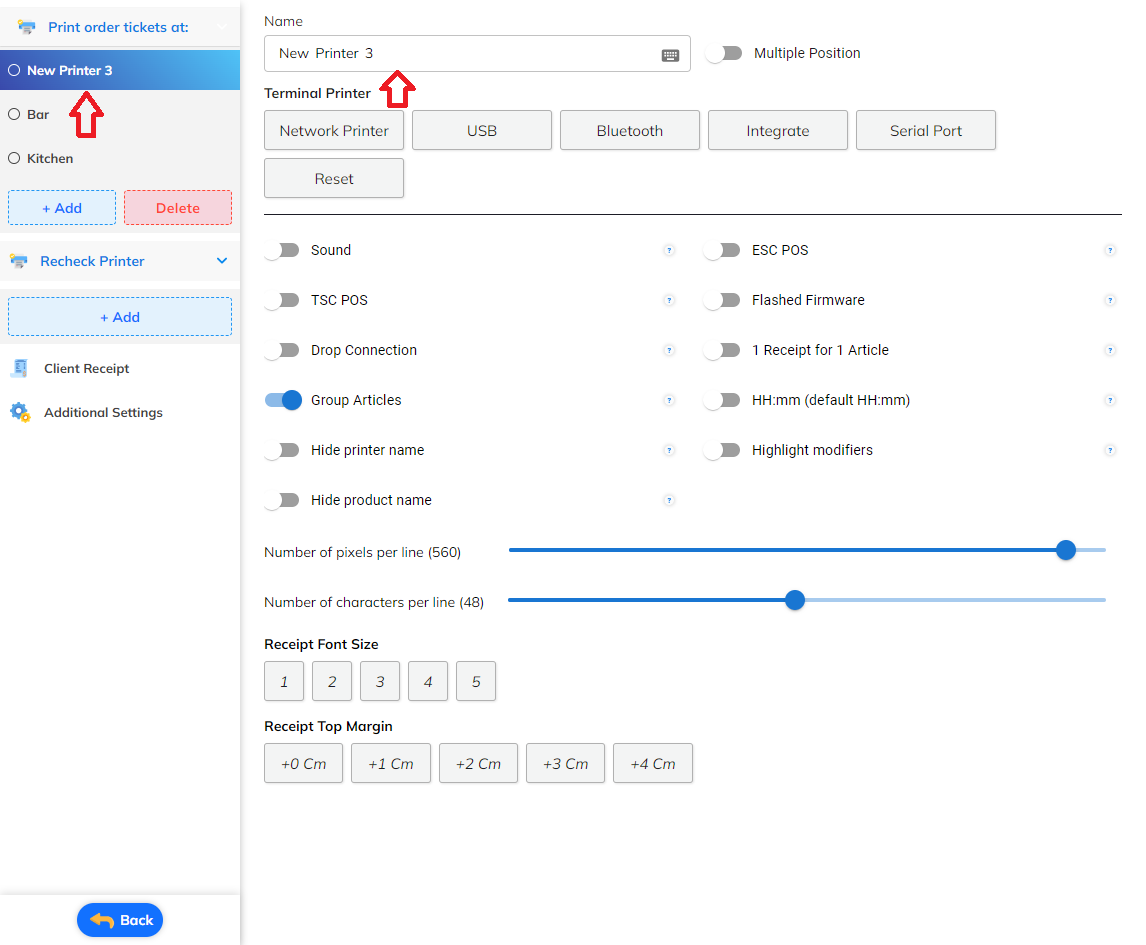
Next is connecting to the printer, here there are 3 ways to connect to the printer:
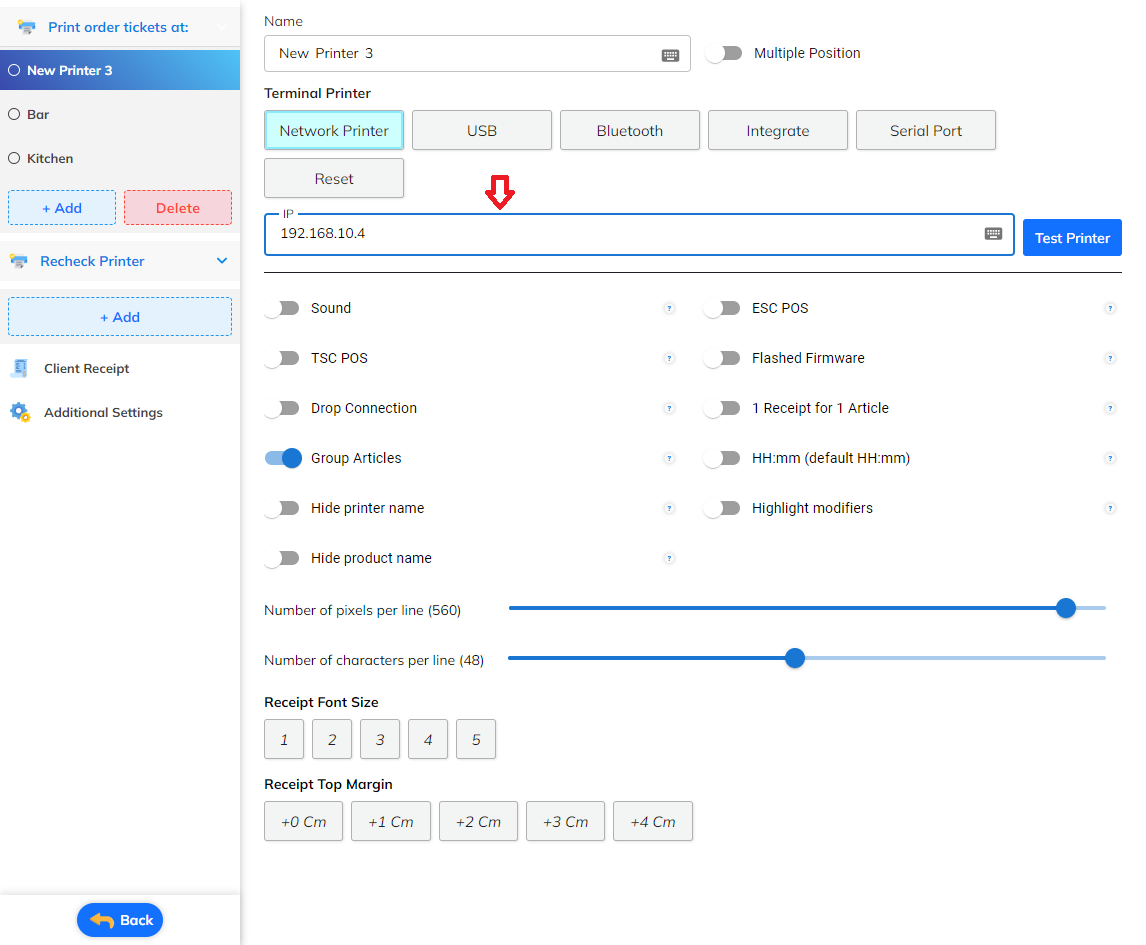
Network Printer
Select Network Printer.
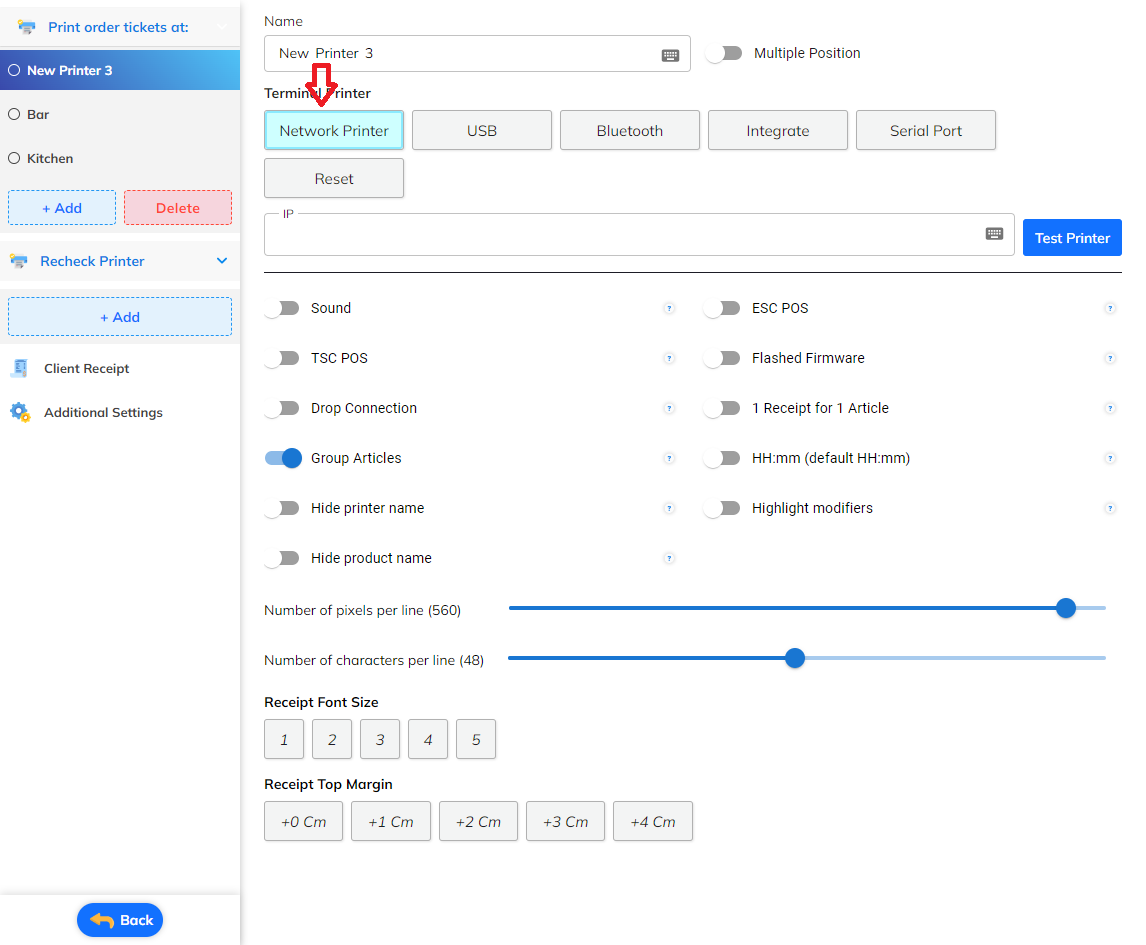
Enter the printer's ip address.
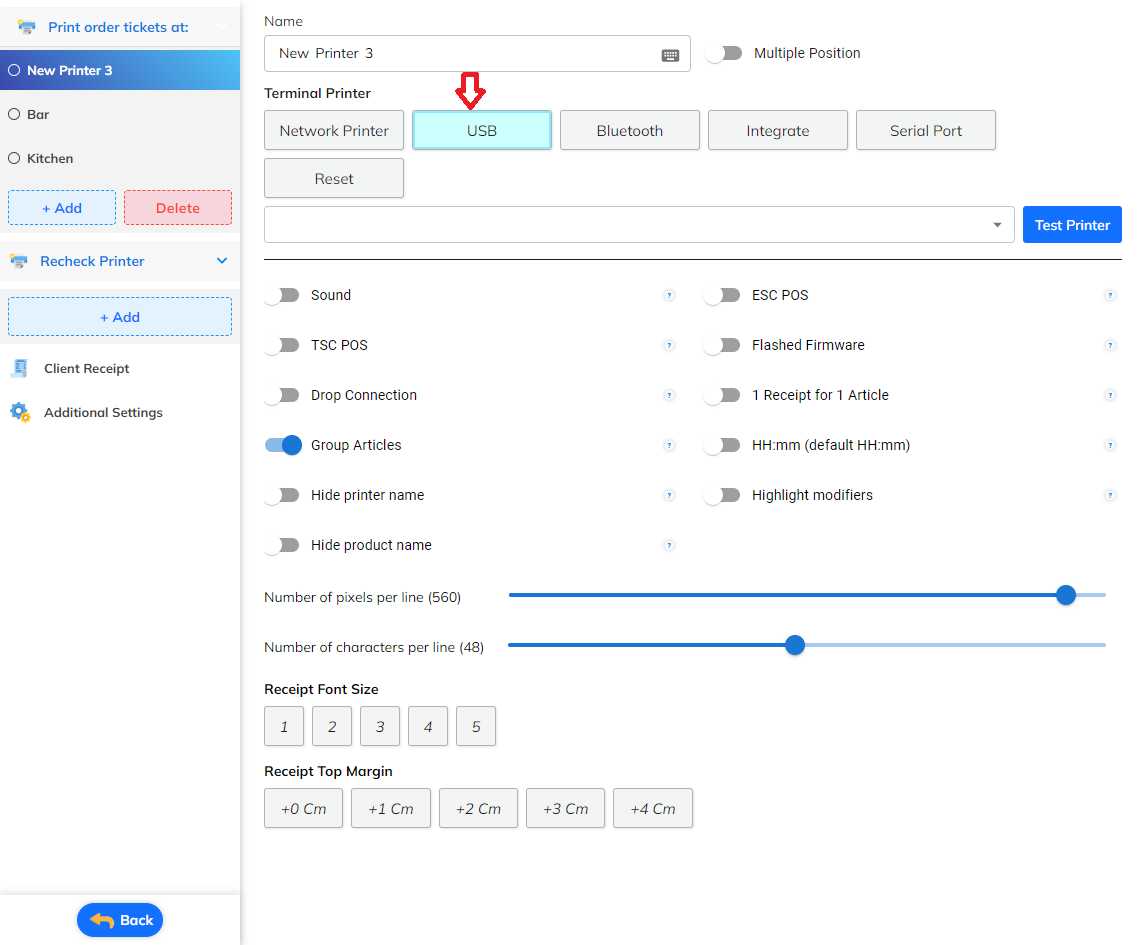
USB
Before choosing USB, please plug in the USB printer and select it.
Bluetooth
Select Bluetooth.
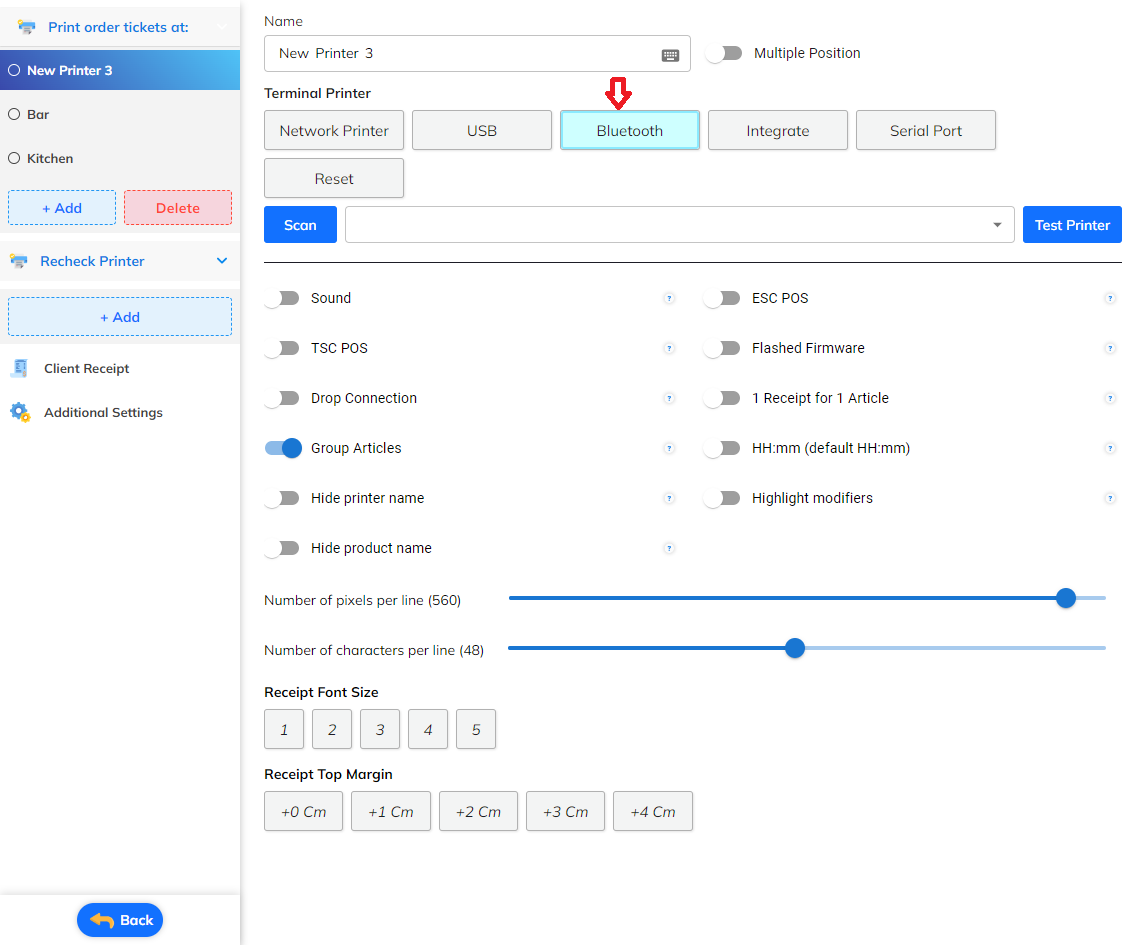
Next select Scan.