
Menu Items
Sub-sections
Click here to set up your menu items
Setup menu items interface
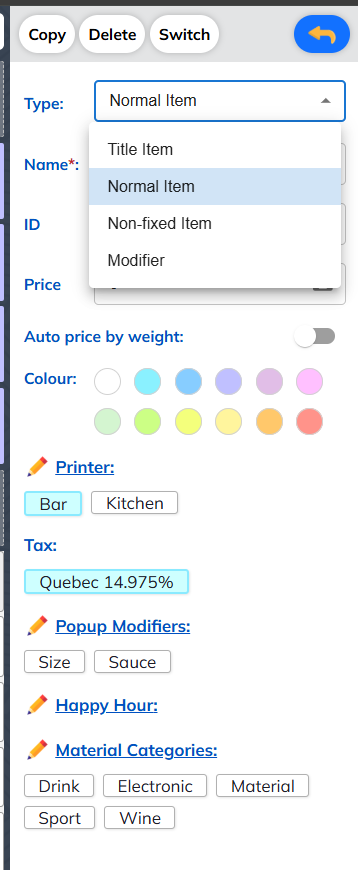
Item Types
- Type: Select item type:
- 🥘 Food
- 🍹 Drink
- 🧾 Other
Four Types of Items
- Title item: you can add a new title item and modify its name
- Normal item: you can modify many item characteristics such as name, ID, price, color, printer, tax, popup modifiers, and happy hour
- Non-fixed Item: you can modify:
- Name
- ID
- Price
- Colour
- Printer
- Tax
- Modifier: you can modify:
- Name
- Price
- Colour
Auto price by weight
Auto Price by Weight is a feature that automatically calculates the price of an item based on its measured weight, typically using a connected scale integrated with the POS. The price is determined by multiplying the weight by a predefined unit price.
Example: The restaurant set 1g of Texas BBQ equals to $45. When the customer order 5g of Texas BBQ, that equals $225.
Item Configuration Options
Colour
c) Colour: you can choose colour for your sub-section
Printer Configuration
d) Printer: You can choose the printers for the item here. You can tap +2 printers when you want to use more than 2 printers before choosing the printers.
- When you choose +2 printer mode, you can choose Bar and Kitchen
- When you don't choose +2 printer mode, you can choose Bar or Kitchen
Tax Settings
e) Tax: Tap to choose the item tax Dine-in/Take-away (the value of item tax is set up in Module Tax & Payments in Settings)
Pop-up Modifiers
g) Pop-up modifiers: add/modify group → add/delete selection → (set up price / printer/ one and only mode)
- New group: you can add a new modifier group
- Modify: you can modify the modifier group
- Duplicate: you can make a copy of the modifier group
Additional Settings
h) Happy hour: reference to above-mentioned "Happy Hour"
i) Material Categories: Please refer to inventory management section
Best Practices
Item Organization
- Use clear, descriptive names for all items
- Set appropriate prices and ensure they're up to date
- Choose colors that help distinguish item types
Printer Setup
- Assign kitchen printers to food items
- Assign bar printers to drink items
- Use +2 printer mode when items need to go to multiple stations
Modifiers
- Group related modifiers together (e.g., "Size Options", "Add-ons")
- Set appropriate prices for modifier options
- Use "one and only" mode for exclusive selections like sizes