Discount
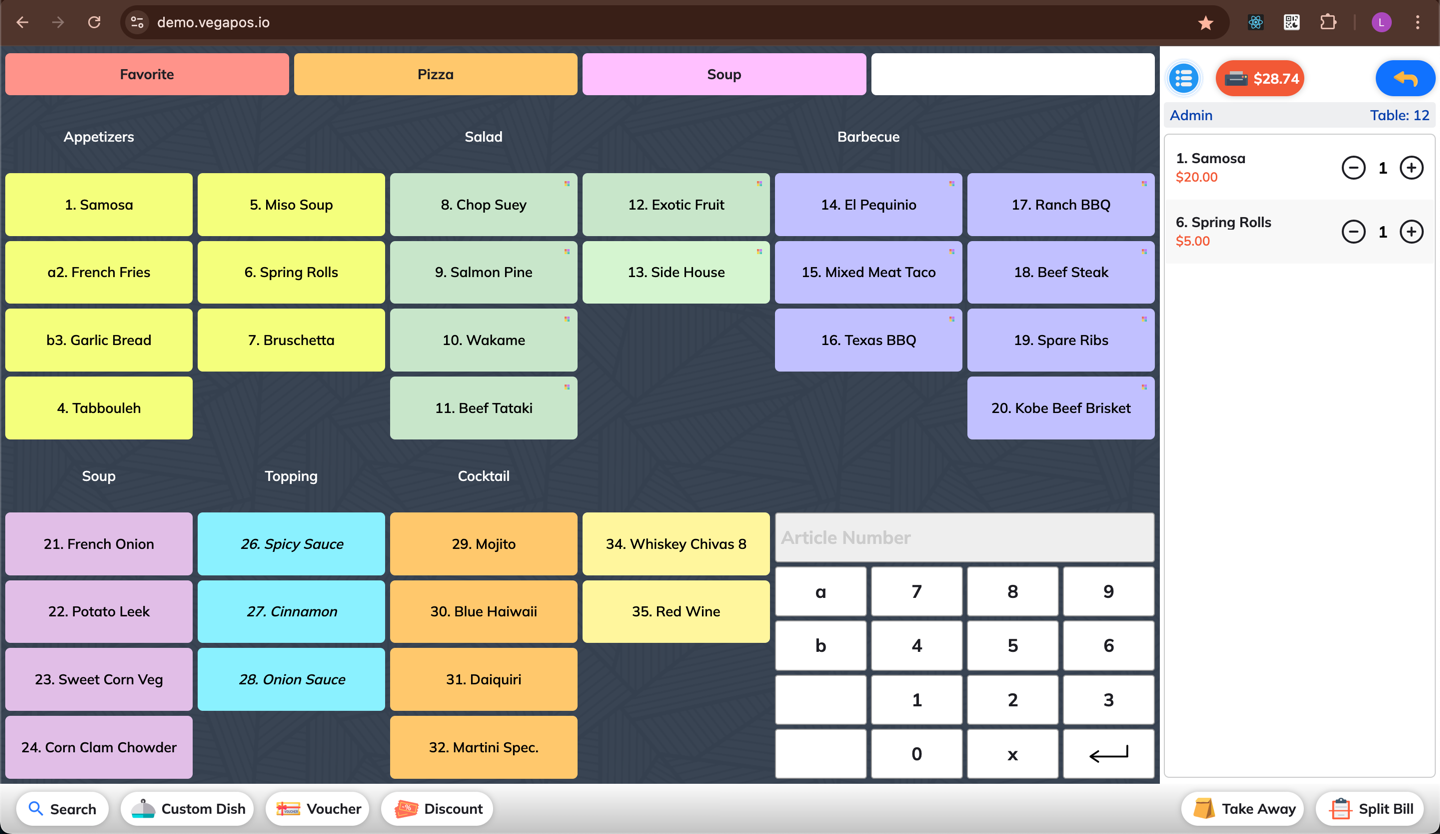
1. Create an Order
Start a new order as you normally would.
2. Open the Discount Tool
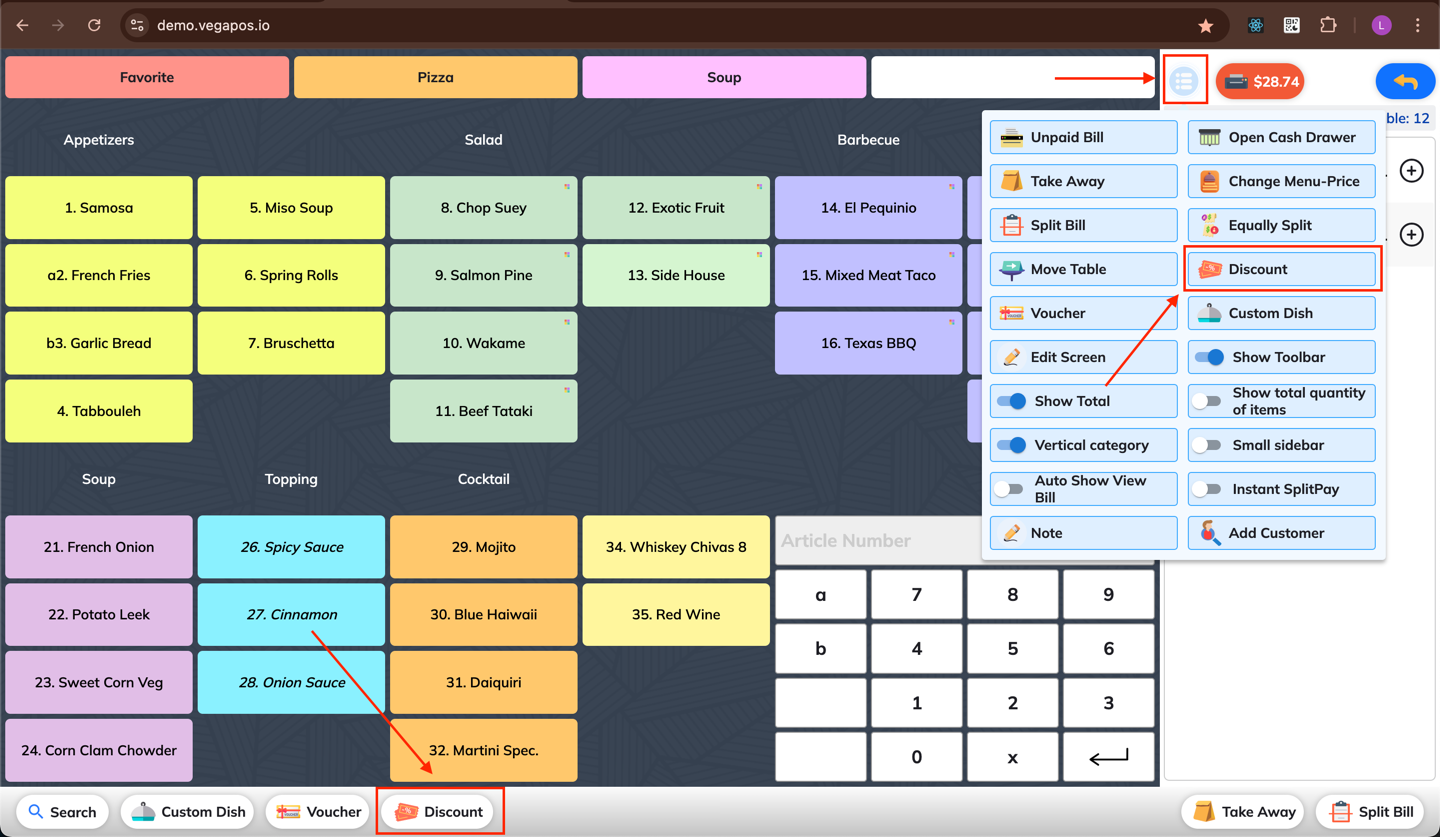
Case 1 - Discount for order (all items):
Click the Discount button in the toolbar,
or find it in the More menu.
Case 2 - Discount for a specific item:
Click/Tap on the item that you want to apply discount
3. Select a Discount Type
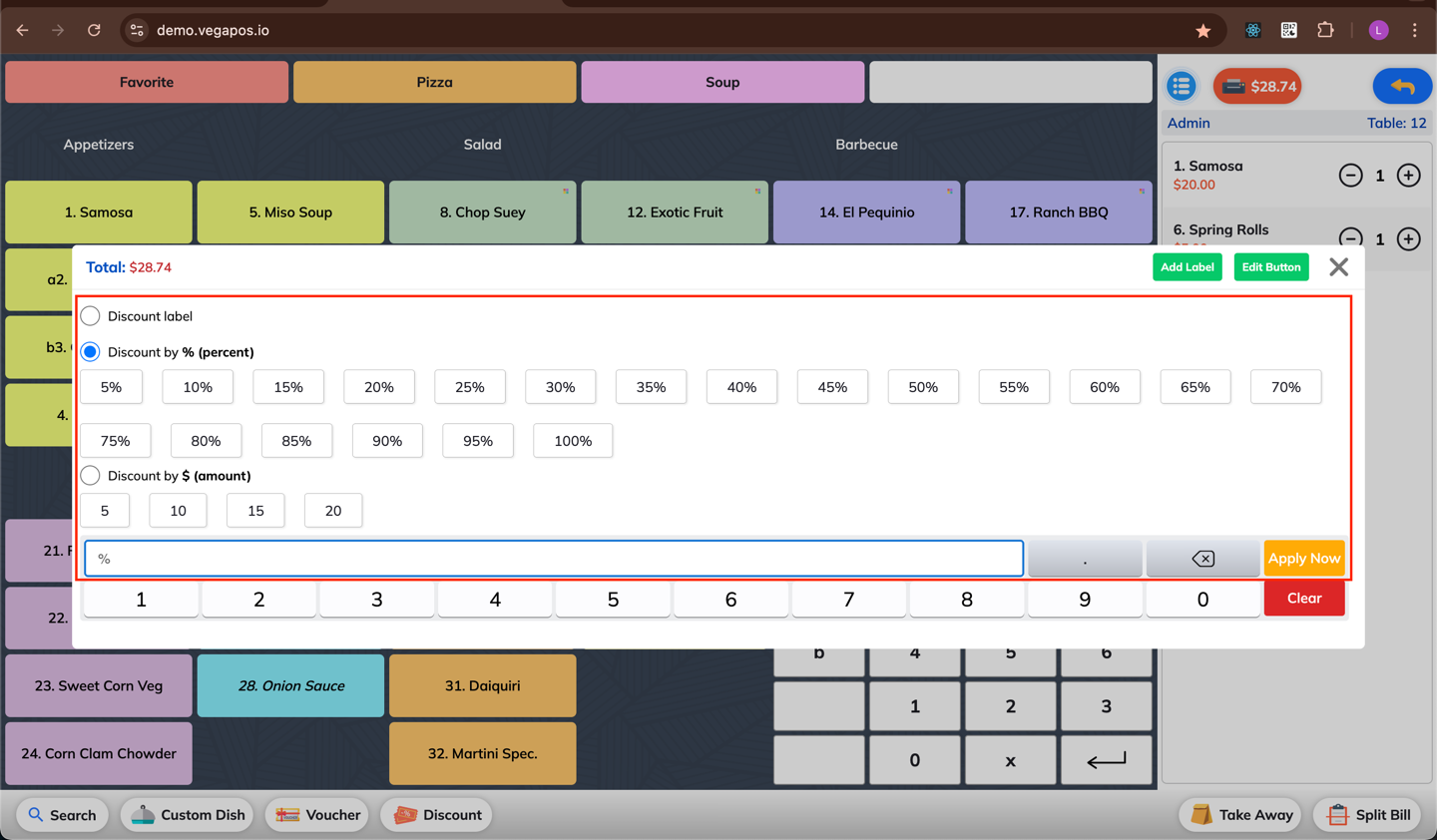
Choose the appropriate discount type (e.g. percentage or fixed amount).
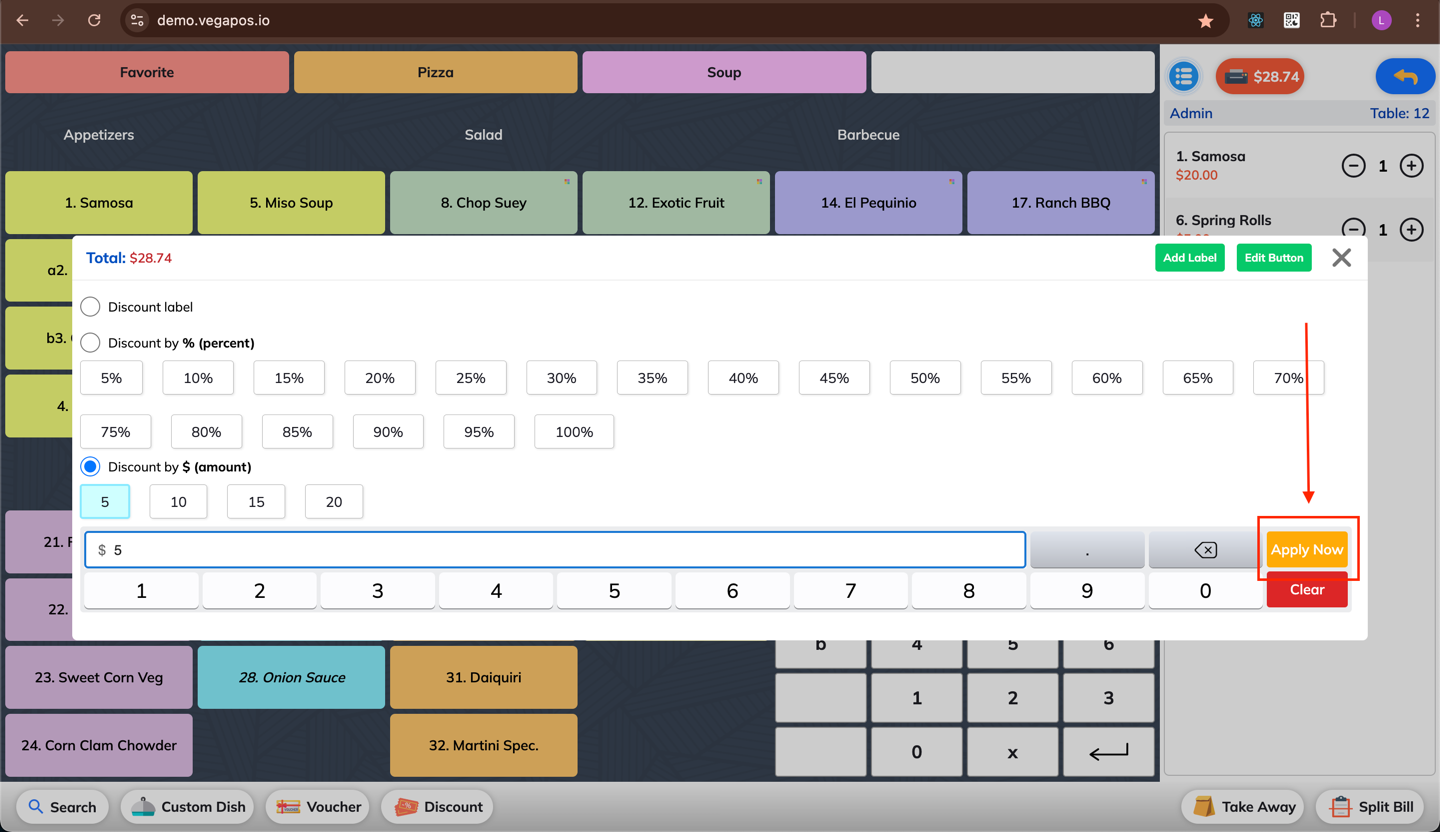
You can set up three types of discount:
Discount label
Discount by % (percent)
Discount by $ (amount)
Enter the desired discount value (e.g. 10% or 5€).
4. Apply the Discount
Click Apply Now to add the discount to the order.
5. Remove the Discount (if needed)
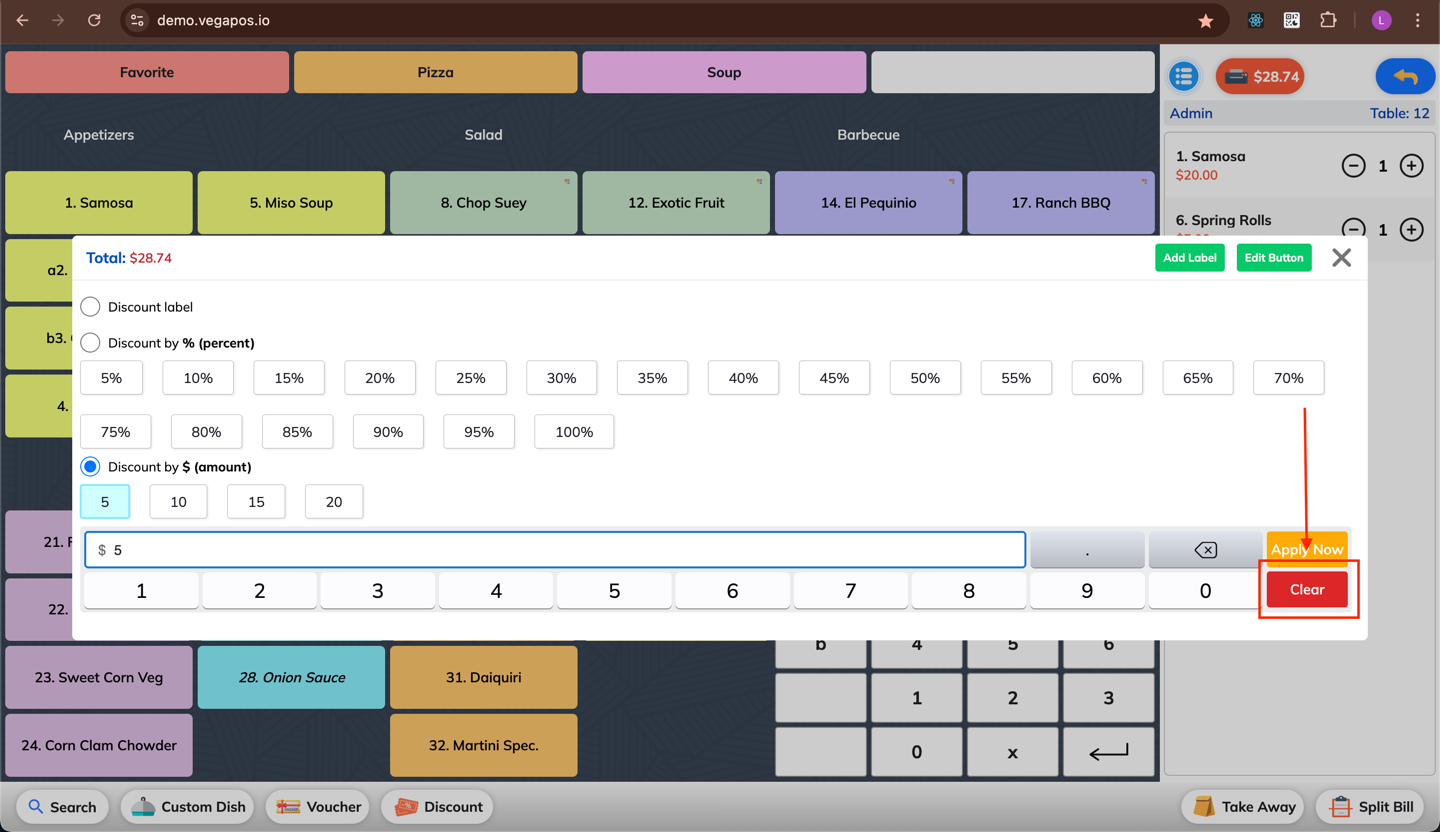
To remove the current discount, reopen the Discount screen
and click Clear (the button below Apply Now).