
Edit Online Menu
You can add new categories and items, or import categories and items from the menu in Edit Menu.
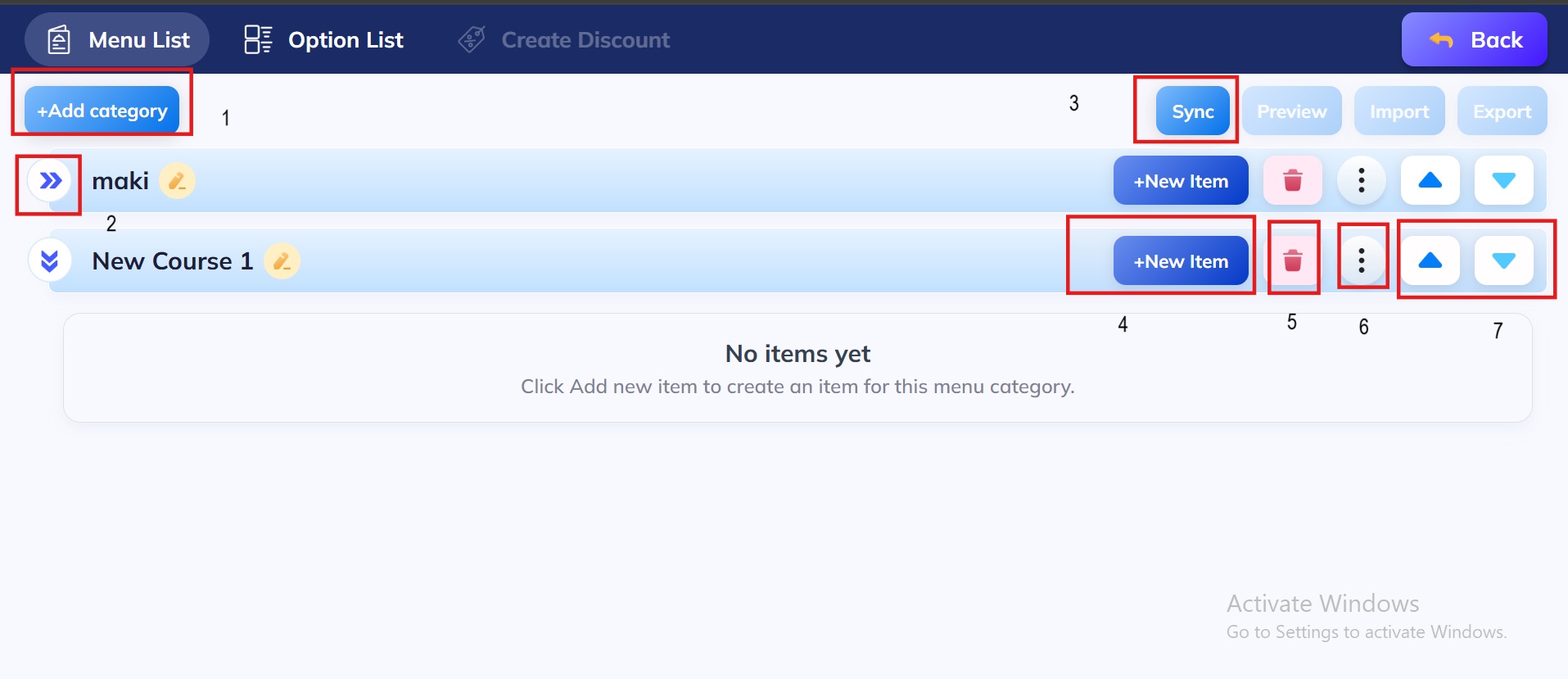
- +Add Category
- This button allows you to create a new menu category (for example: "Appetizers", "Drinks", "Sushi").
- Once created, you can add items inside that category.\
- Category Name & Arrow Icon (Example: "maki")
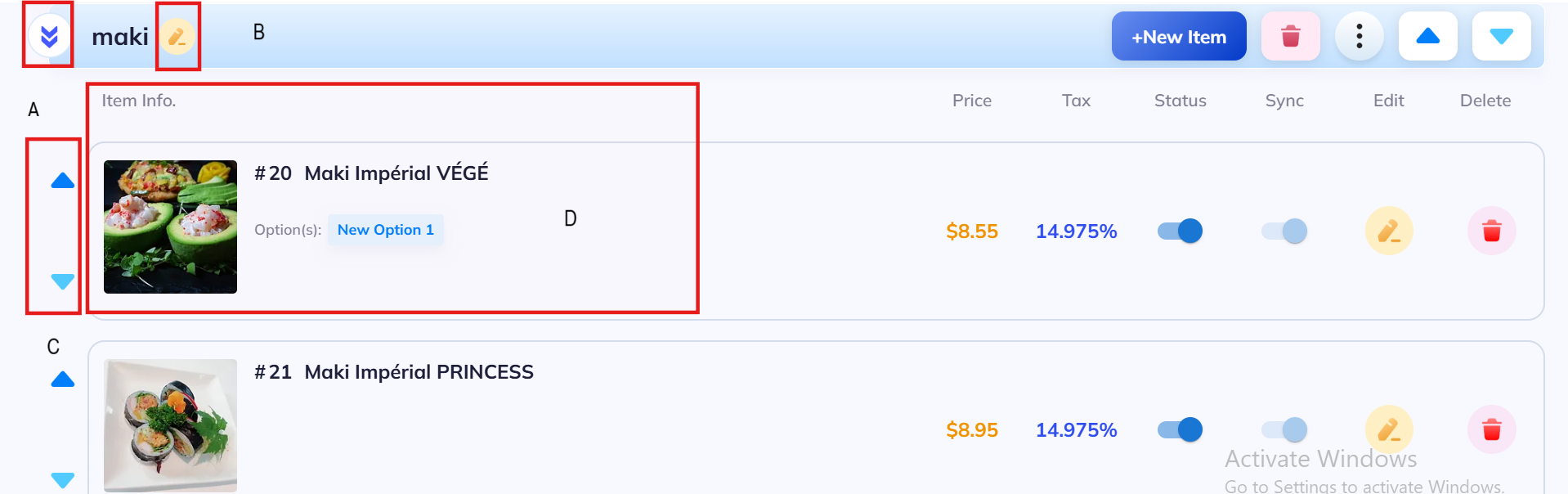
A: The arrow icon lets you expand or collapse the list of items inside that category.
B: The pencil ✏️ icon next to the category name allows you to edit the category name.
C: Blue Up/Down Arrows → Reorder the position of items in the category
D: Item Info
Shows the dish image, item number, and item name.
Example:
#20 Maki Impérial VÉGÉ ($8.55)
#21 Maki Impérial PRINCESS ($8.95)
Options (like sizes or add-ons) also appear here → e.g., New Option 1.
Price
- The selling price of the dish.
- Blue Up/Down Arrows → Reorder the position of items in the category
Tax
- The tax rate applied (here, 14.975%, which matches Québec’s TPS + TVQ).
Status (Blue toggle)
- ON (blue) = Item is visible and can be ordered.
- OFF (gray) = Item is hidden but not deleted.
Sync (Gray toggle)
- Used to synchronize menu items with external systems
- ON = Updates will be pushed.
- OFF = No sync.
Edit (Yellow pencil)
- Opens the edit screen where you can change name, price, tax, photo, availability, etc.
Delete (Red trash bin)
- Permanently removes the item from the menu.
- Sync
- This button is used to synchronize your menu changes to the live system ( POS, online ordering website ).
- You need to click this after editing so customers can see the updated menu.
- +New Item (inside category)
- Adds a new menu item inside the selected category.
- Example: In "New Course 1", you can add items like "Salmon Roll", "Tuna Roll", etc.
- Trash Bin Icon 🗑
- Deletes the entire category (along with its items, if any).
- Be careful: once deleted, the category and its items are removed.
- Three Dots ⋮ (More Options)
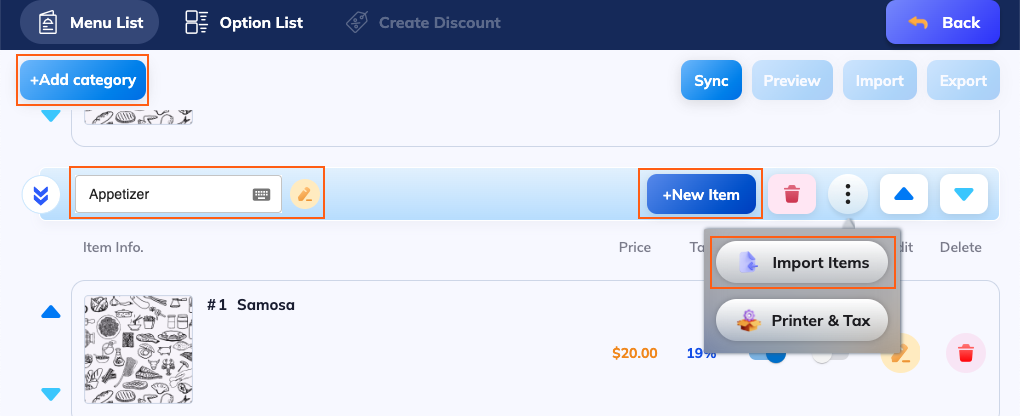
6.1. Import Items
- Allows you to import multiple menu items into this category at once.
- Instead of adding each dish manually, you can upload items (often via CSV/Excel file or from another menu).
6.2. Printer & Tax
Lets you set printer routing and tax rules for this specific category.
Example:
Items in the “Drinks” category could be routed to the bar printer.
Items in the “Maki” category could be routed to the sushi kitchen printer.
You can also assign specific tax rates (e.g., food tax, alcohol tax).
- Up/Down Arrows ⬆️⬇️
- Used to reorder categories in the menu list.
- Example: You can move "New Course 1" above "maki" or change their sequence.