
Keyboard Setup
Keyboard Configuration
You can type the item ID here when ordering.
Keyboard Settings
Configure keyboard settings:
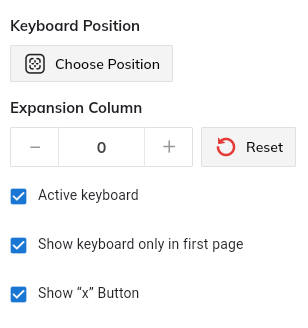
- Active keyboard: Choose whether to show the keyboard or not
- Show keyboard only in first page: If you choose this, the keyboard is only shown in the first page (the first category)
- Show "x" button: If you choose this, there will be an "x" on the keyboard. The "x" can be used to enter the number of dishes while ordering
- Expansion Row: Tap "-"/"+" to decrease or increase the number of rows
- Expansion Column: Tap "-"/"+" to decrease or increase the number of columns
How to set up the keyboard
Step-by-step setup:
- Tap the keyboard
- Keyboard position: Tap "Choose position" → Drag and drop to choose the keyboard position
- Expansion Column: tap "-"/"+" to decrease or increase the number of columns
Keyboard Features
Active Keyboard
Control whether the keyboard is visible during ordering. This is useful if you prefer touch-only ordering or want to save screen space.
Page-specific Display
Show keyboard only in first page - Limits keyboard display to the first category only, reducing clutter on subsequent pages.
Special Functions
Show "x" button - Adds a special "x" key that can be used for entering quantities or special functions during ordering.
Layout Customization
- Expansion Row: Adjust the number of horizontal rows
- Expansion Column: Adjust the number of vertical columns
- Position: Drag and drop to place the keyboard where it's most convenient
Best Practices
Screen Layout
- Position keyboard where it doesn't interfere with menu items
- Consider staff workflow and common ordering patterns
- Test different positions to find optimal placement
Size Configuration
- Balance keyboard size with available screen space
- Ensure keys are large enough for easy tapping
- Adjust rows/columns based on screen orientation
Functionality
- Enable "x" button if you frequently need to enter quantities
- Consider limiting keyboard to first page if screen space is limited
- Keep keyboard active if staff frequently use item IDs for ordering