
Option List
The Option List allows you to create and manage product add-ons or choices such as toppings and extras. From here, you can add new options, set the selection type, and edit or remove existing options to fit your menu needs.
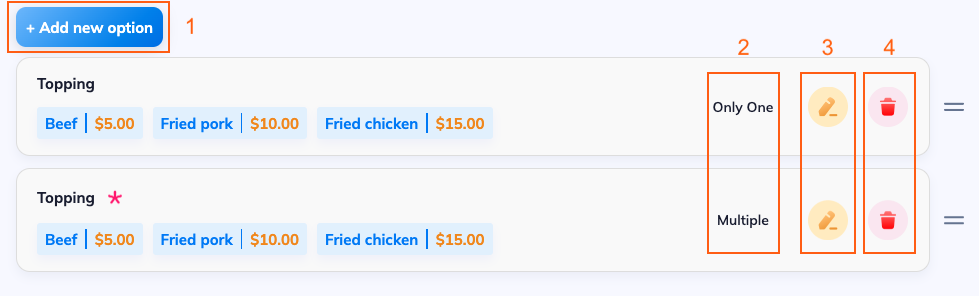
- Add new option
- Option type: Only One/ Multiple/ Quantity/ Select
- Edit option
- Delete option
When you edit option, the pop-ụp screen will be shown below.
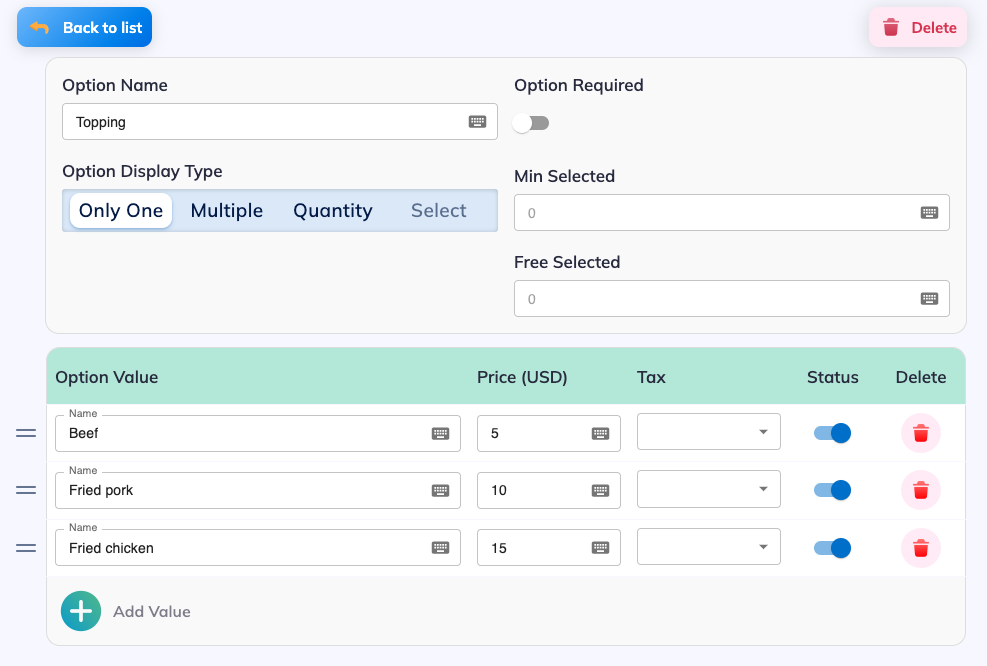
a. Option Name
- The title of the option group (e.g., Topping, Drinks, Sauces).
- This is what the customer will see when making their choice.
b. Option Display Type
- Only One → Customer can select only one value (like choosing a size: Small / Medium / Large).
- Multiple → Customer can select several options at the same time (like multiple pizza toppings).
- Quantity → Customer can select how many units of each option they want. Extra fields appear here:
- Items/Pack: lets you define how many items are in one pack/unit.
- Max Selected: limits the maximum number of packs/items a customer can order.
- Select → Works similar to “Multiple,” but allows finer control on required selection rules.
c. Option Required (Toggle)
- If ON → Customer must pick at least one option.
- If OFF → They can skip it and continue ordering.
d. Min Selected
- Minimum number of options the customer must select.
- Example: Set to 1 → at least one topping must be chosen.
e. Free Selected
- Number of options the customer can choose for free.
- Example: First 2 toppings are free, after that extra toppings cost money.
f. Option Value Section (Each Choice Inside the Group)
For each value (like Beef, Pork, Chicken), you have:
- Name → What the customer sees (e.g., “Beef”).
- Price (USD) → Extra cost for that value (can be 0 if included).
- Items/Pack (only in Quantity mode)
- Defines how many items are included in one pack.
- Example: 1 pack of “Beef Skewers” = 5 skewers.
- Max Selected (only in Quantity mode)
- The maximum number of packs/items a customer can order for this value.
- Example: If set to 3, customer cannot order more than 3 packs.
- Tax → Choose if tax applies to this option.
- Status (Toggle) → ON = active & visible; OFF = hidden.
- Delete (Trash Icon) → Permanently remove this option value.
g. Add Value (+ Button)
Lets you add a new choice inside the group (e.g., adding Shrimp as another topping).
How to sync the online menu item?
There are 3 steps to edit the menu item:
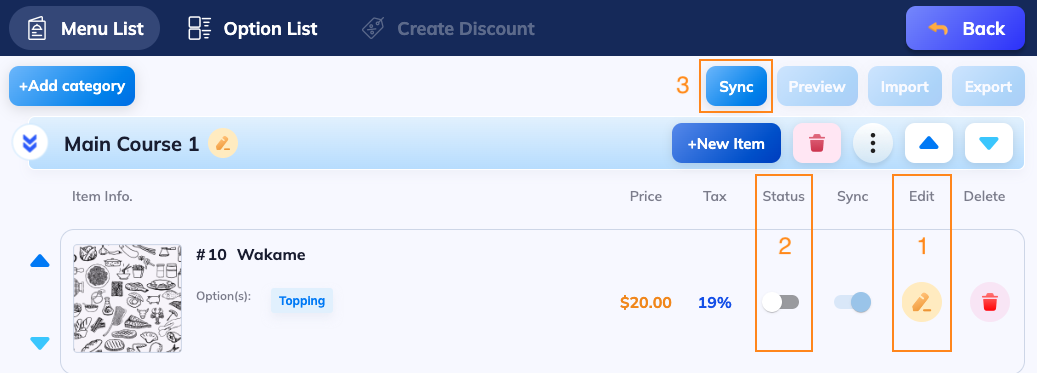
- Tap Edit: you can modify Item Name, Option, Price, etc.
- Turn on Status
- Tap Sync
The menu item will be synced with the Menu Items of the provider (e.g. Pikapoint)