
Edit Menu - Getting Started
How to edit Menu?
The Edit Menu feature allows you to create, modify, and organize your restaurant's menu items, categories, and configuration settings.
Accessing Edit Menu
Go to Settings → Edit Menu.
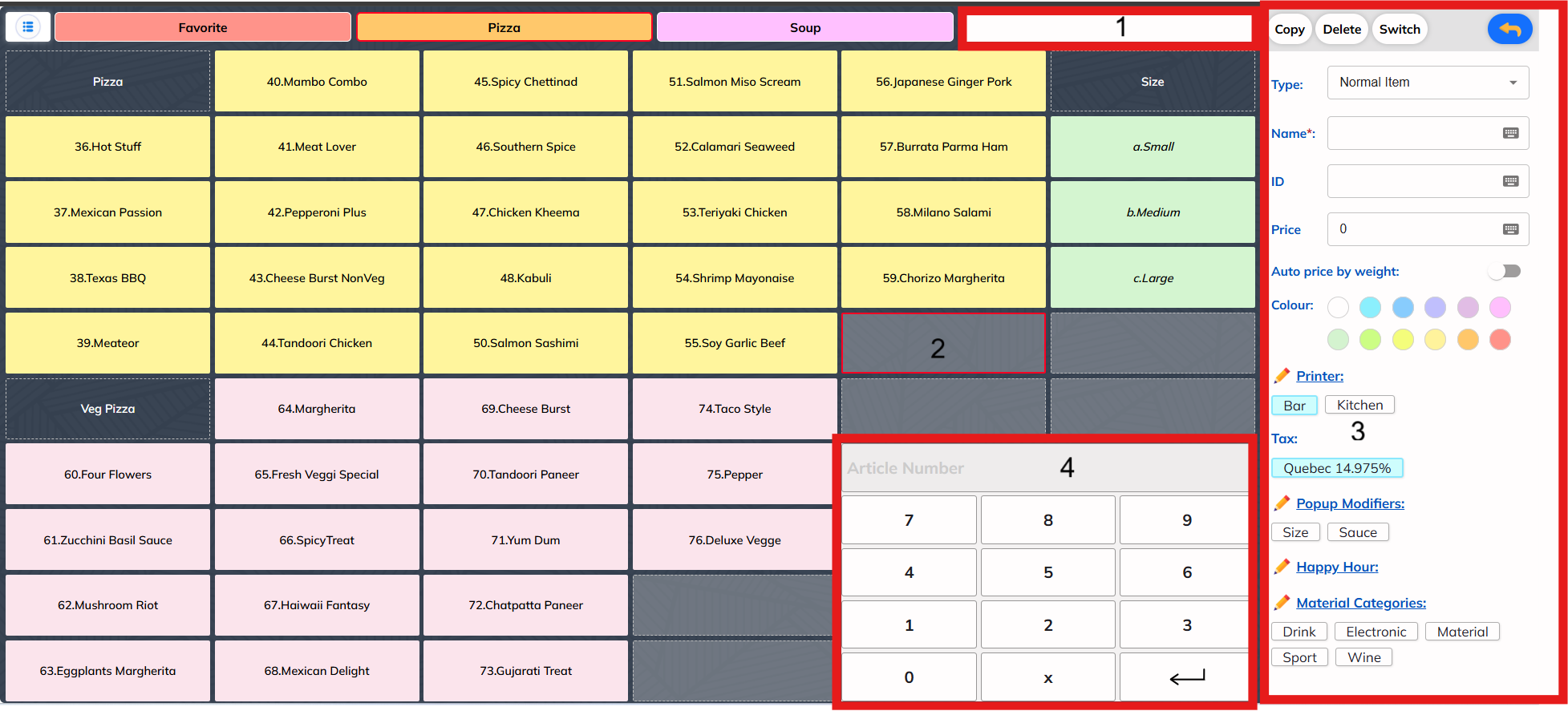
Key Features Overview
Edit Menu provides comprehensive tools for managing your restaurant's digital menu:
📂 Category Management
Set up and organize menu categories to structure your offerings logically. Create sections like Appetizers, Main Courses, Beverages, and Desserts.
🍽️ Menu Item Configuration
Create and configure individual menu items with pricing, descriptions, images, and customization options.
⌨️ Keyboard Interface Setup
Configure the ordering keyboard interface for faster order entry and improved staff efficiency.
📱 Multiple Menu Support
Create different menus for different times (breakfast, lunch, dinner) or different platforms (dine-in, takeout, delivery).
🌐 Multi-Language Support
Set up menu items in multiple languages to serve diverse customers and kitchen staff preferences.
📜 Scrollable Layout Options
Configure scrollable menu layouts when you have many categories and want seamless navigation.
🖨️ Multi-Printer Configuration
Set up multiple printers for different menu items, routing orders to specific kitchen stations automatically.
What you can do in Edit Menu
The Edit Menu section is organized into several key areas:
Core Configuration
- Categories - Set up and organize menu categories
- Menu Items - Create and configure individual menu items
- Keyboard Setup - Configure the ordering keyboard interface
Advanced Features
- Multiple Menus - Create different menus for different times or platforms
- Multi Language - Set up menu items in multiple languages
- Scrollable Layout - Configure scrollable menu layouts for many items
- Multi-printer Selection - Set up multiple printers for different menu items
Getting Started
- Start with Categories - Set up your basic menu structure
- Add Menu Items - Create your food and drink items
- Configure Advanced Features - Set up multiple menus, languages, etc. as needed
Each section provides detailed step-by-step instructions to help you configure your menu exactly how you need it.