
Voucher
You can manage vouchers here by creating new vouchers, redeeming created vouchers
1. Create/sell voucher
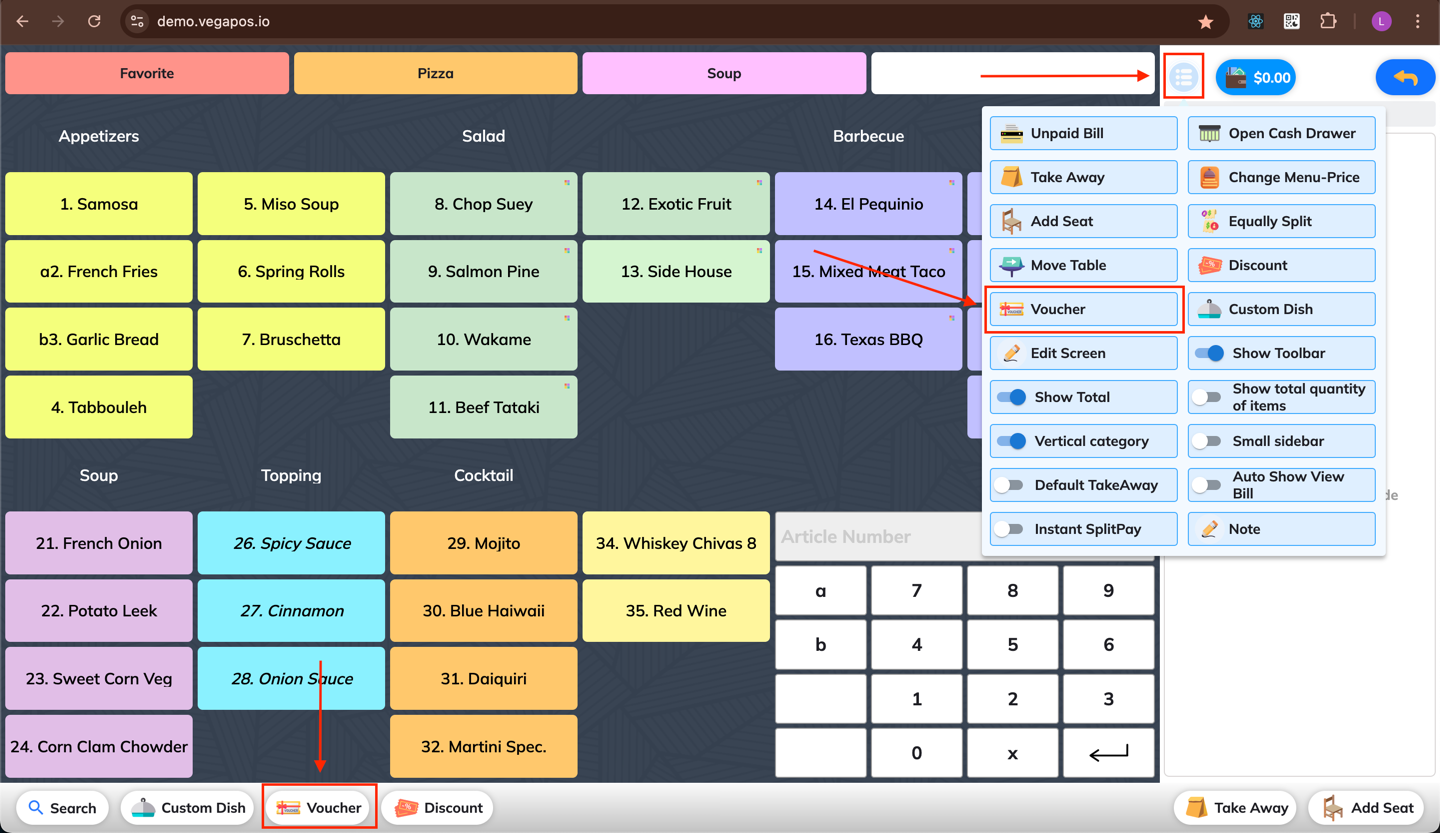
Step 1. Open the Voucher Tool
Click the Voucher button on the toolbar,
or find it in the More menu.
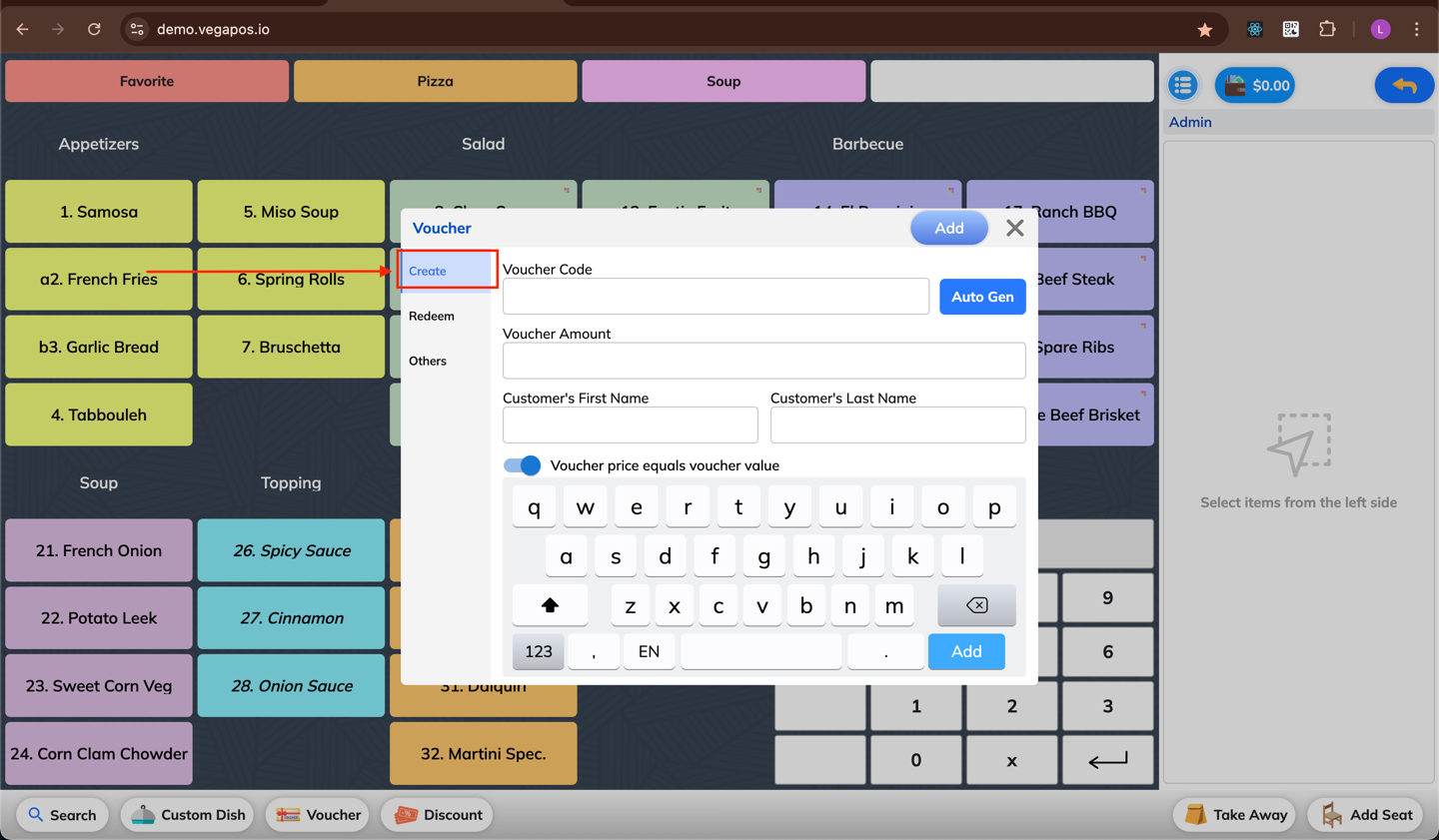
Step 2. Select the "Create" Tab
Switch to the Create tab to start issuing a new voucher.
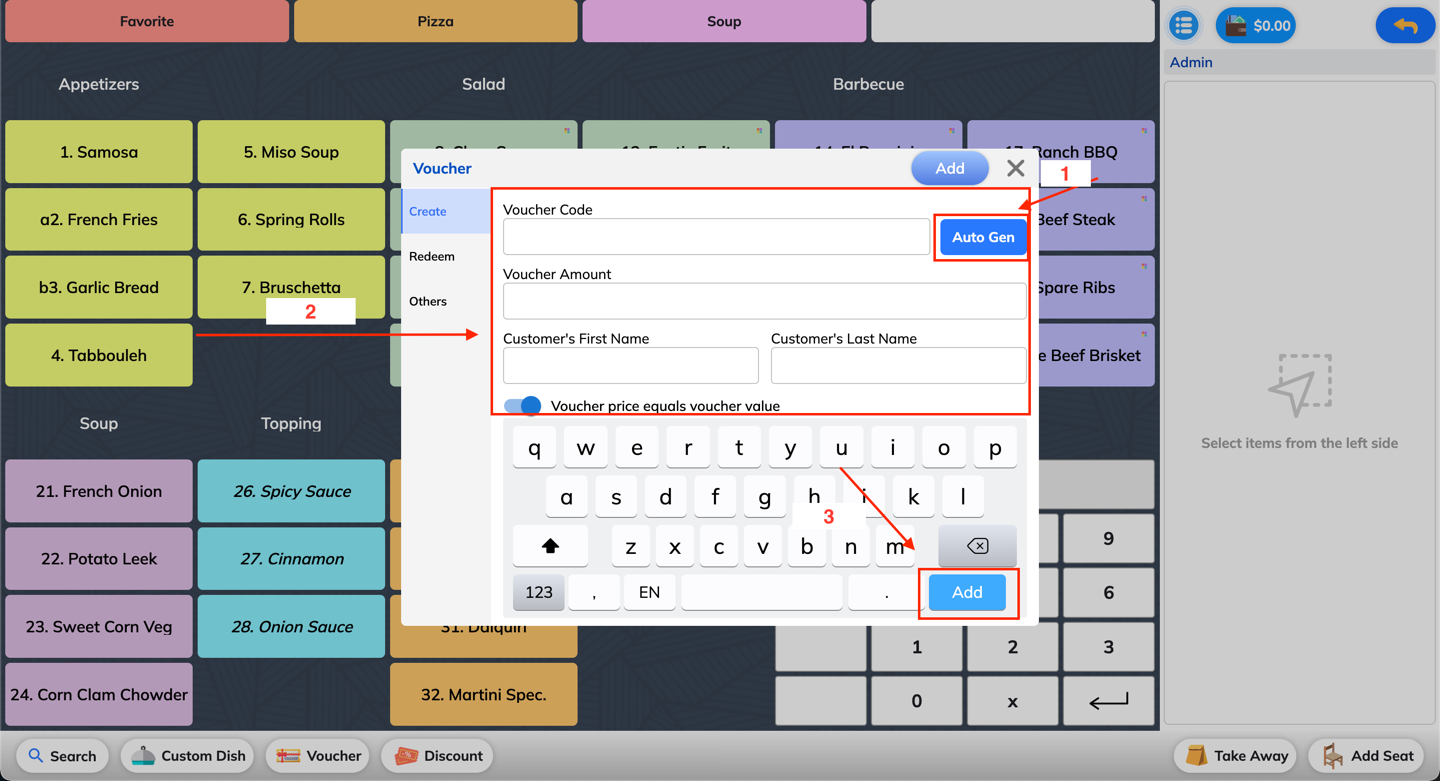
Step 3. Enter Voucher Details
Fill in the required information (e.g. value, code, expiry date).
You can enter voucher code to create a voucher by yourself or use Auto Gen to have the POS system make one for you.
There are two modes when setting up voucher value:
- Voucher price equals voucher value

- Voucher price does not equal voucher value

You can enter Customer's First Name and Customer's Last Name (not compulsory)
Click Add Voucher to include it in the order.
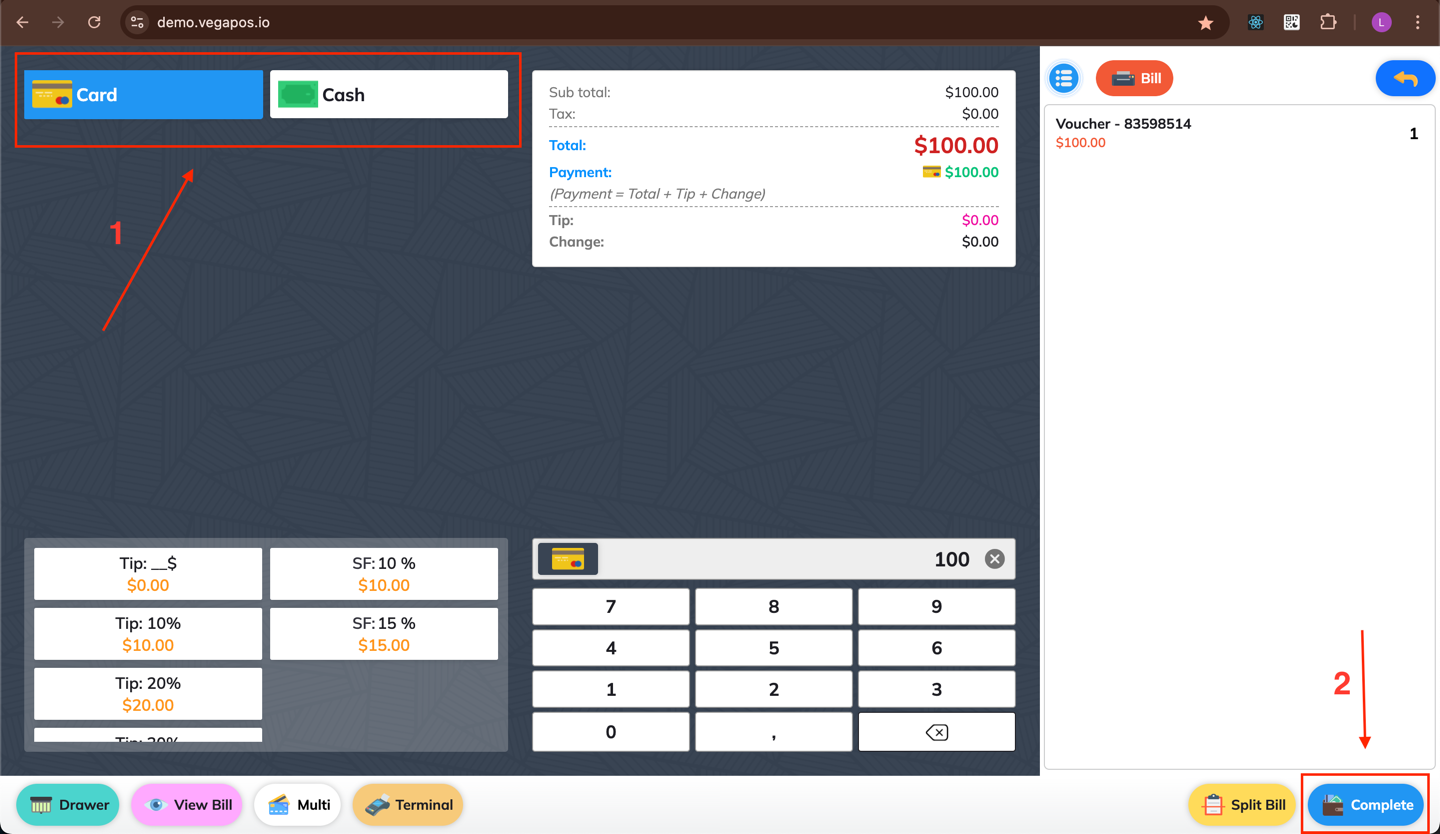
Step 4. Request Payment
Ask the customer to complete the payment for the voucher.
⚠️ Note: The voucher will not be issued in the system unless the customer pays for it.
2. Redeem voucher
Step 1. Open the Voucher Tool
Click/Tap the Voucher button on the toolbar, or select it from the More menu.
Step 2. Select the "Redeem" Tab
Go to the Redeem tab to use a voucher.
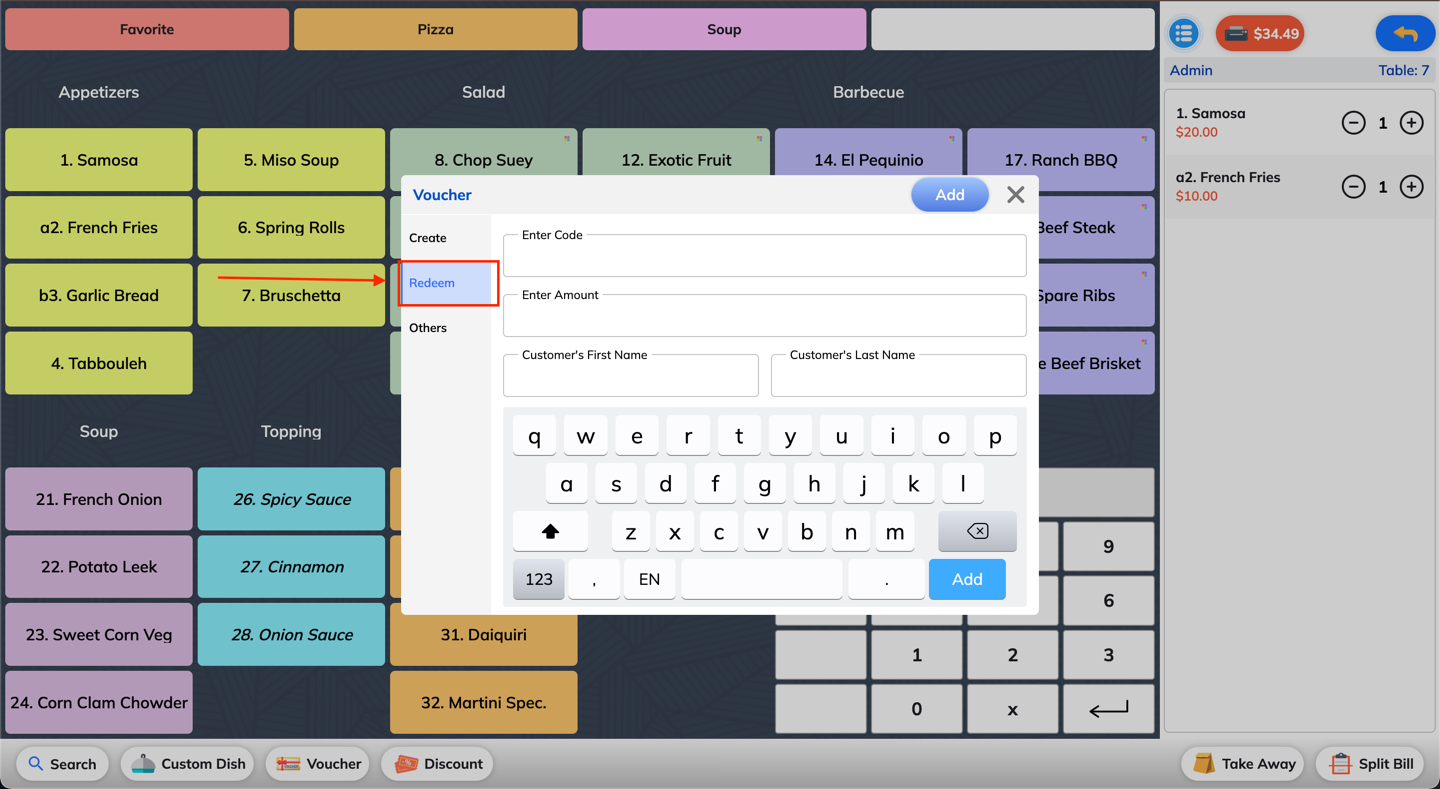
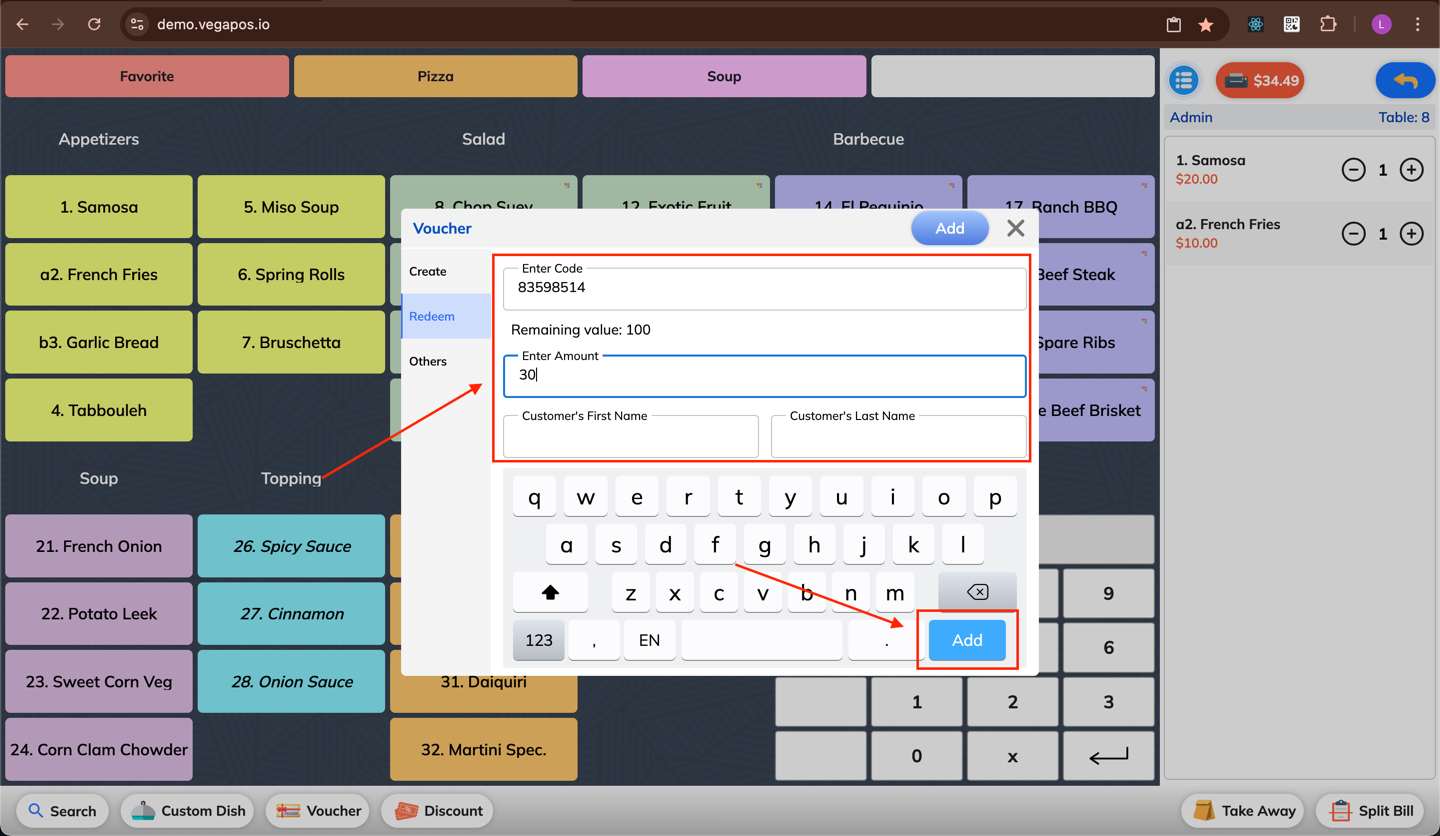
Step 3. Enter Voucher Information
Fill in the voucher details:
Code and Amount are required.
⚠️ The amount must not exceed the current order total.
Click Add to apply the voucher to the order.
3. Others
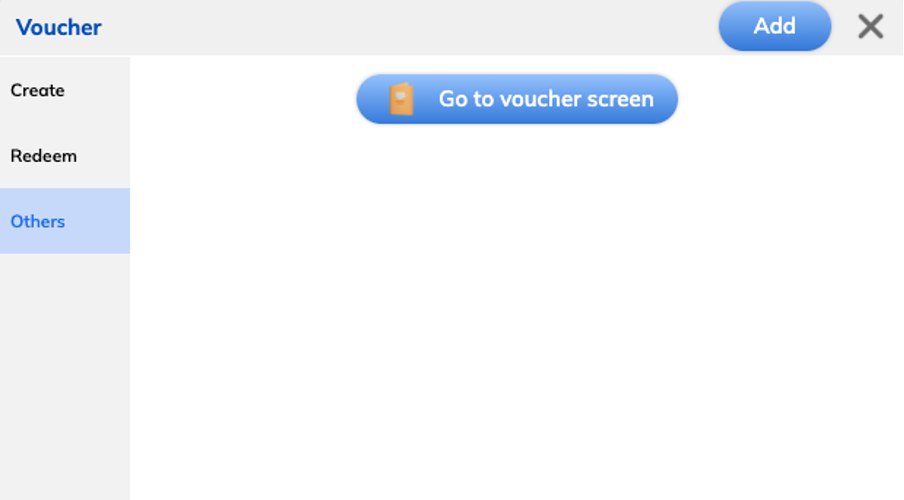 When you choose Others, you can Go to voucher screen to see more details to manage vouchers.