
Multi Language
Multi Language
You can use this feature when you want the item language shown on Kitchen Monitor different from the language shown when ordering.
Example: English for ordering, French for kitchen monitor.
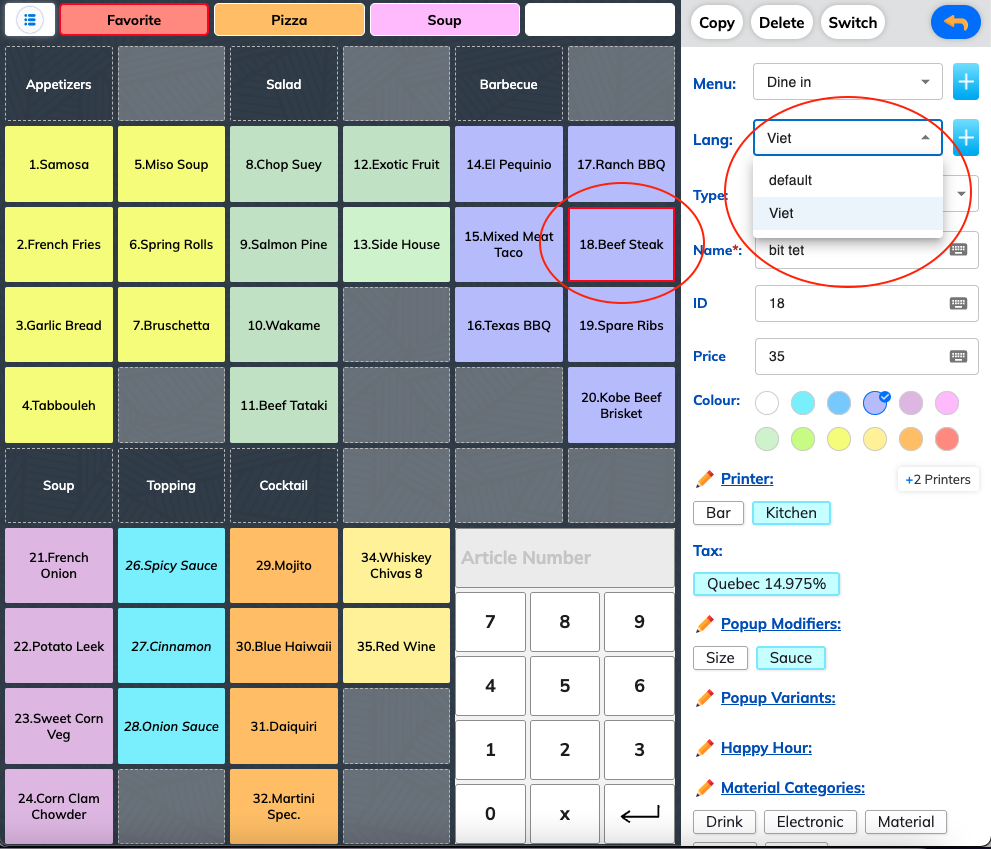
How to edit with Multi language mode
Setup Process:
- Choose the language
- Edit as usual
For Kitchen Monitor
The selected language will be displayed on the kitchen monitor, helping kitchen staff understand orders in their preferred language.
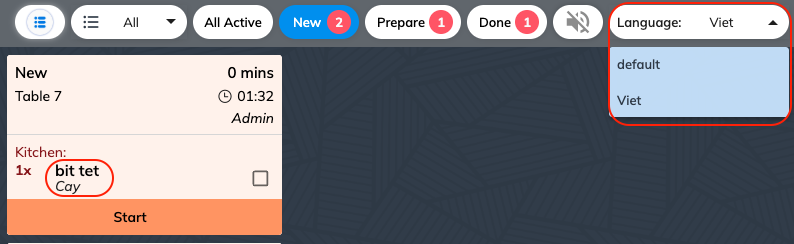
Language Configuration
Front-of-House Language
- Customer-facing display: The language customers see when ordering
- Staff interface: Language for waitstaff and cashiers
- Receipts and tickets: Customer-facing printed materials
Kitchen Monitor Language
- Kitchen display: Language shown to kitchen staff
- Preparation instructions: Cooking details in kitchen staff's preferred language
- Order tickets: Kitchen-specific printed orders
Use Cases
Multilingual Staff
- English front-of-house: For customer service
- Spanish kitchen: For kitchen staff communication
- French prep station: For specialized preparation areas
International Locations
- Local language ordering: Customer-facing interface in local language
- English kitchen: Standardized kitchen operations
- Multiple locations: Consistent operations across different countries
Cultural Considerations
- Regional preferences: Staff comfort with specific languages
- Training efficiency: Using staff's native language for complex instructions
- Error reduction: Clear communication in preferred languages
Setup Instructions
Language Selection
- Navigate to Multi Language settings
- Choose the primary ordering language
- Select the kitchen monitor language
- Configure any additional display languages
Menu Translation
- Enter menu items in the primary language
- Add translations for kitchen display
- Include cooking instructions in kitchen language
- Test both displays for accuracy
Benefits
Improved Communication
- Reduced errors: Clear instructions in preferred language
- Faster service: Staff work more efficiently in native language
- Better coordination: Clear communication between front and back of house
Staff Efficiency
- Training: Easier to train staff in their native language
- Confidence: Staff more confident when working in preferred language
- Accuracy: Reduced mistakes due to language barriers
Customer Experience
- Local service: Customers feel more comfortable with local language interface
- Accuracy: Orders processed correctly despite language differences
- Professional service: Seamless experience regardless of language setup
Best Practices
Translation Quality
- Use professional translations for customer-facing content
- Ensure kitchen terms are accurate and clear
- Regular review of translations for accuracy
Staff Training
- Train staff on language switching procedures
- Ensure understanding of both language versions
- Provide reference materials in both languages
Testing and Maintenance
- Regular testing of both language displays
- Update translations when menu items change
- Monitor for any display issues or errors