Menu List
The Menu List section allows you to manage and organize all items offered by your restaurant. You can add new categories, create new items, or import multiple items at once.
How to add new items ?
New Item
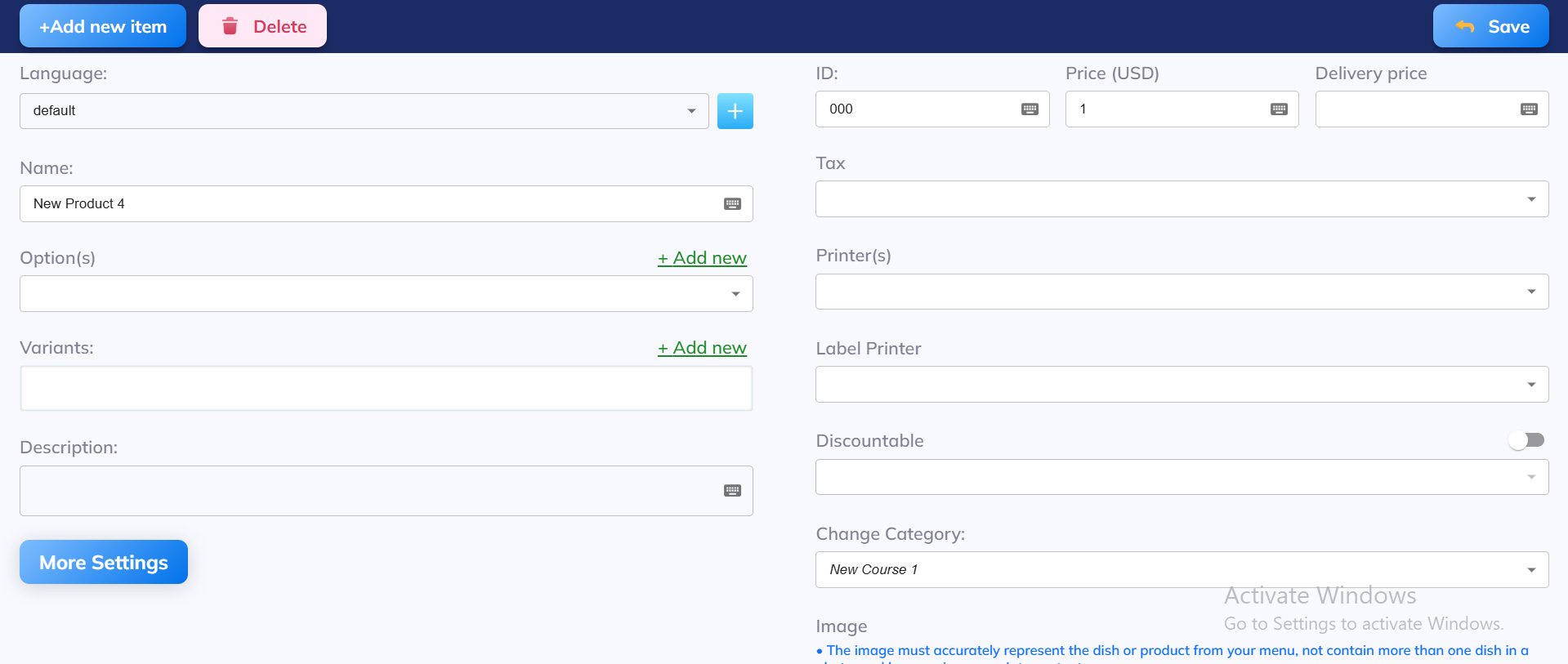
Left Side (Item Details)
+Add new item
Create another new product/dish entry.
Delete
Removes this product from the menu.
Language
Select the language for the product name/description (useful for multilingual menus).
Name
The product’s display name (e.g., “California Roll”).
Option(s) (+ Add new)
Add extra options like “Extra Sauce,” “No Ice,” “Choose Side Dish.”
Variants (+ Add new)
In a restaurant context, the term "Variant" or "Variation" indicates that a dish is offered with multiple choices. For example, a menu might list 'Pizza' with several variants below it, such as 'Margherita,' 'Pepperoni,' or 'Vegetarian.' You'll need to specify which version you want when ordering.
Description
Additional details about the product (e.g., ingredients, taste, or serving style).
More Settings
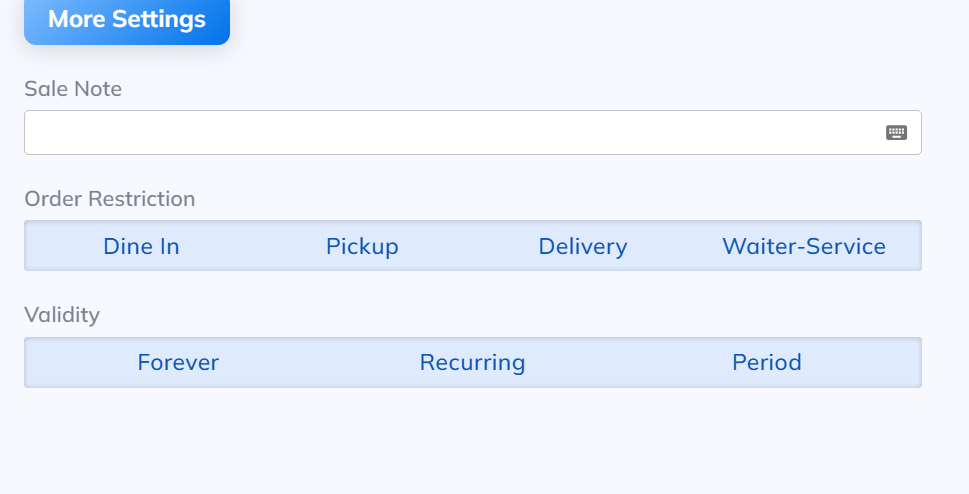
Sale Note
Add special instructions for staff when this item is sold (e.g., “Serve with chili sauce” or “Check ID for alcohol”).
Order Restriction
Choose where this item can be ordered:
- Dine In – Available for in-restaurant orders.
- Pickup – Available for takeout.
- Delivery – Available for delivery orders.
- Waiter-Service – Available when waiter enters order in POS system. (You can select one, multiple, or all options.)
Validity Controls when this item is available:
- Forever – Always available.
- Recurring – Available on a schedule (e.g., “Every Monday 5–9 PM” for Happy Hour).
- Period – Available only during a fixed time frame (e.g., “December 1–31” for Christmas special).
Right Side (Pricing, Tax, Printers, Settings)
- ID:
- A unique code for the product
- Price (USD):
- The base selling price of the item.
- Delivery price:
- A separate price when the item is ordered for delivery (if different from dine-in).
- Tax:
- Assign the correct tax rate (e.g., standard food tax, alcohol tax).
- Printer(s):
- Choose which kitchen/bar printer receives this order (e.g., “Kitchen Printer 1,” “Bar Printer”).
- Label Printer:
- For printing stickers/labels (used in takeout/delivery packaging).
- Discountable (toggle switch):
Decide if this item can be discounted (e.g., happy hour, promo codes).
- ON = discounts can apply
- OFF = always full price
- Change Category:
- Select which menu category the item belongs to (e.g., “Maki,” “Drinks,” “New Course 1”).
- Image (not uploaded yet in screenshot):
- Upload a product photo. The system requires
- Must show the actual dish/product
- Should not include multiple dishes in one image
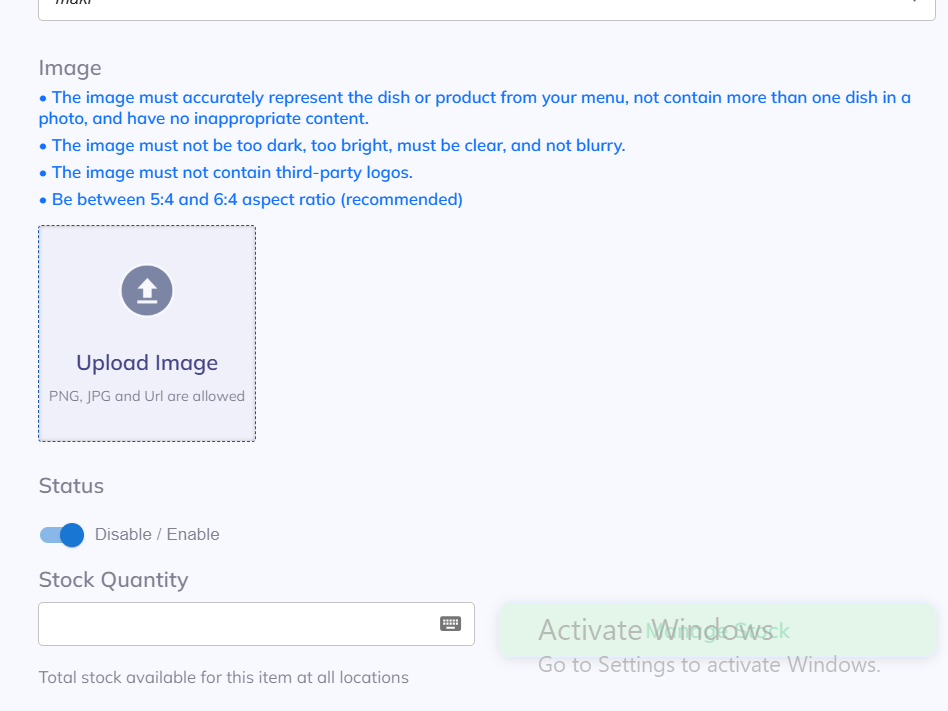
Status (Enable / Disable)
- Enable = Item is active and visible on the menu.
- Disable = Item is hidden (customers can’t order it, but it stays saved in the system).
Stock Quantity
- If stock runs out, the system can automatically stop customers from ordering it.
- Example: “50” for limited-edition sushi rolls.
Import Items
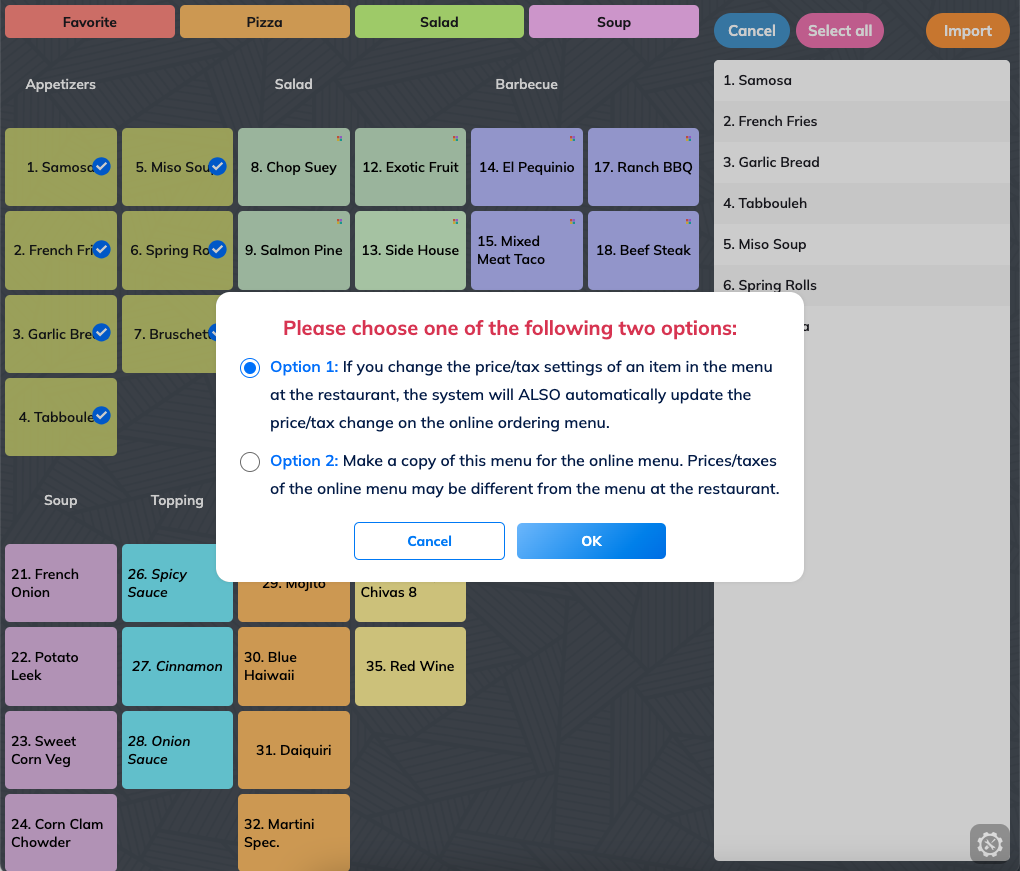
You can import items from the menu setup in Edit Menu (Settings)
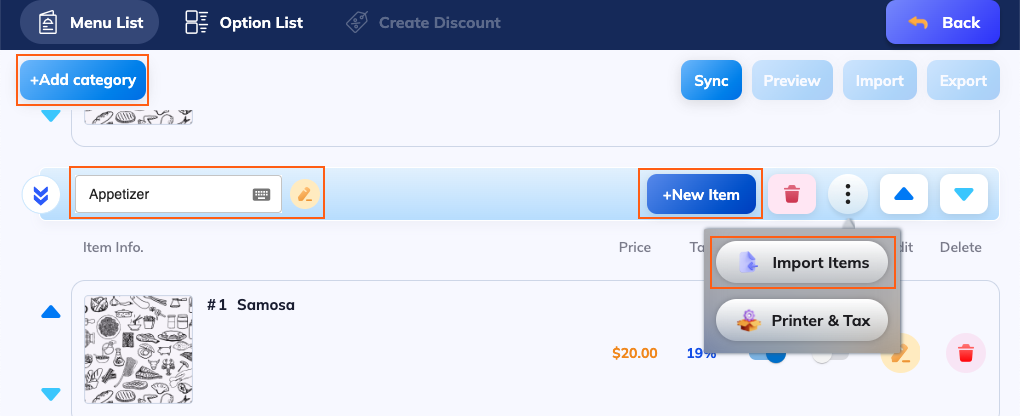
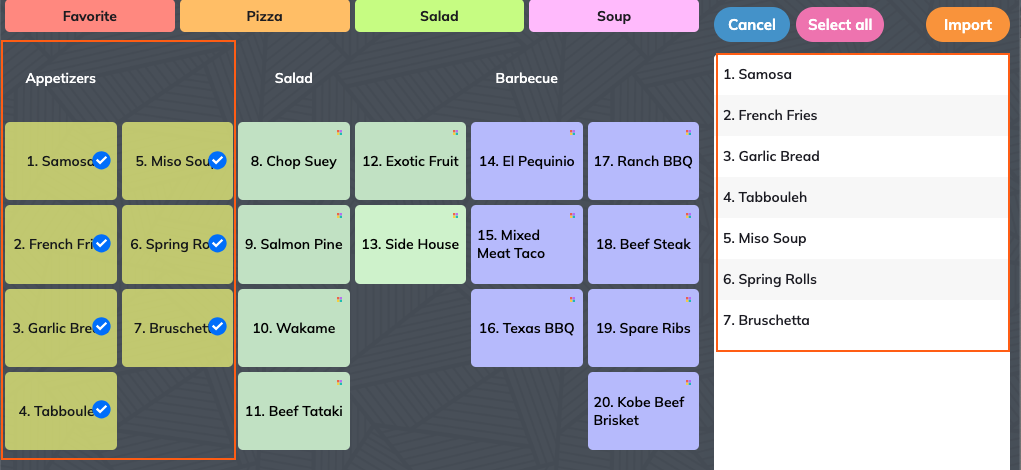
You can choose items from the menu on the left to import.
- Choose each item to import: Select individual items
- Select all: import all items in that category page
There are 2 options when you want to import menu items:
- The system updates the price/tax change automatically
- The system doesn't update the price/tax change automatically