Installation & Login
1. Installation
Go to Google Play/App Store to install the app “Vega POS"
Links to download Vega POS for Google Play: Vegapos / Google Play
You can download the Vega POS for Android by opening the following link on your device: vega-v1.4.126.apk (193.6 MB). You can also download the Vega POS application by scanning the Android QR-code below using the device's camera, you do need a QR Code Scanner on your Android device for this.

- Links to download Vega POS for App Store: Vega POS / App Store
2. Login
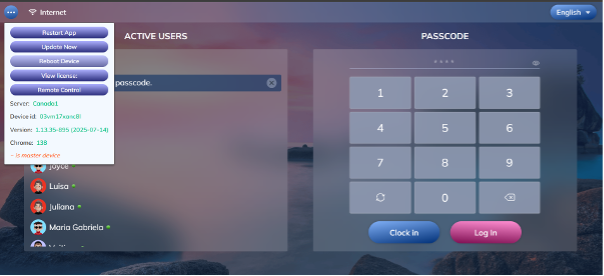
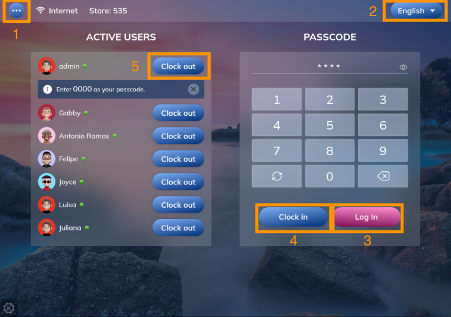
(1) The server: you can choose the server here
(2) The language: you can choose the language here
(3) Log in: you can enter passcode (each staff has his own passcode) at the keyboard to log in -> tap Log in to access
(4) Clock in: to record the time you arrive at work
(5) Clock out: to record the time you leave work
<?> How to record staff working hours?
There are two ways for staff to clock in/ clock out
1. Log In page
You can enter your passcode and tap Clock in to record the time you arrive at work
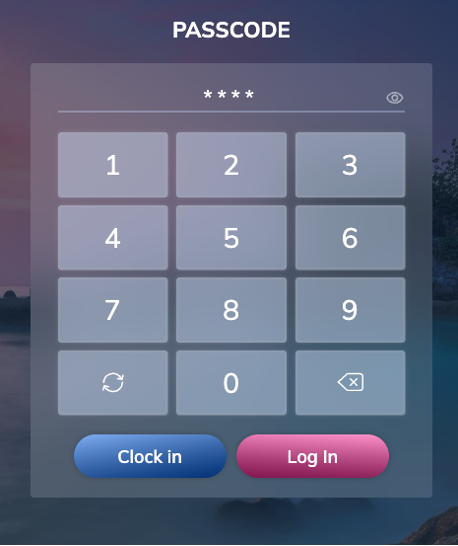
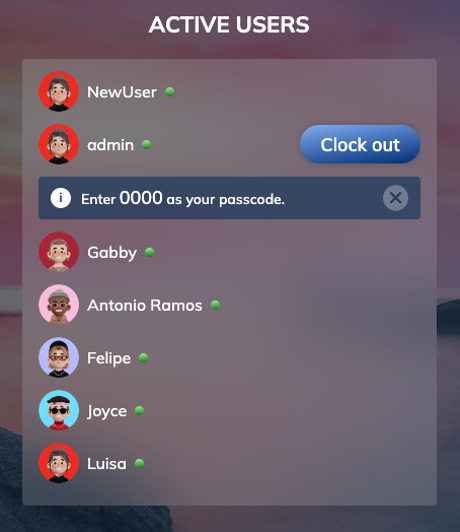
When you want to clock out, you can return to the Log In page and tap clock out button beside your name
2. Home page
After logging in and going to the Home page, you can clock in by tapping the clock button on the top left of the screen.

When you want to clock out, you can tap at that clock button again.