Add Note
Attach a custom note to an order for internal use or kitchen/bar instructions.
⚠️ Note: This feature should only be used when the order is newly created and has not been printed to the kitchen yet.
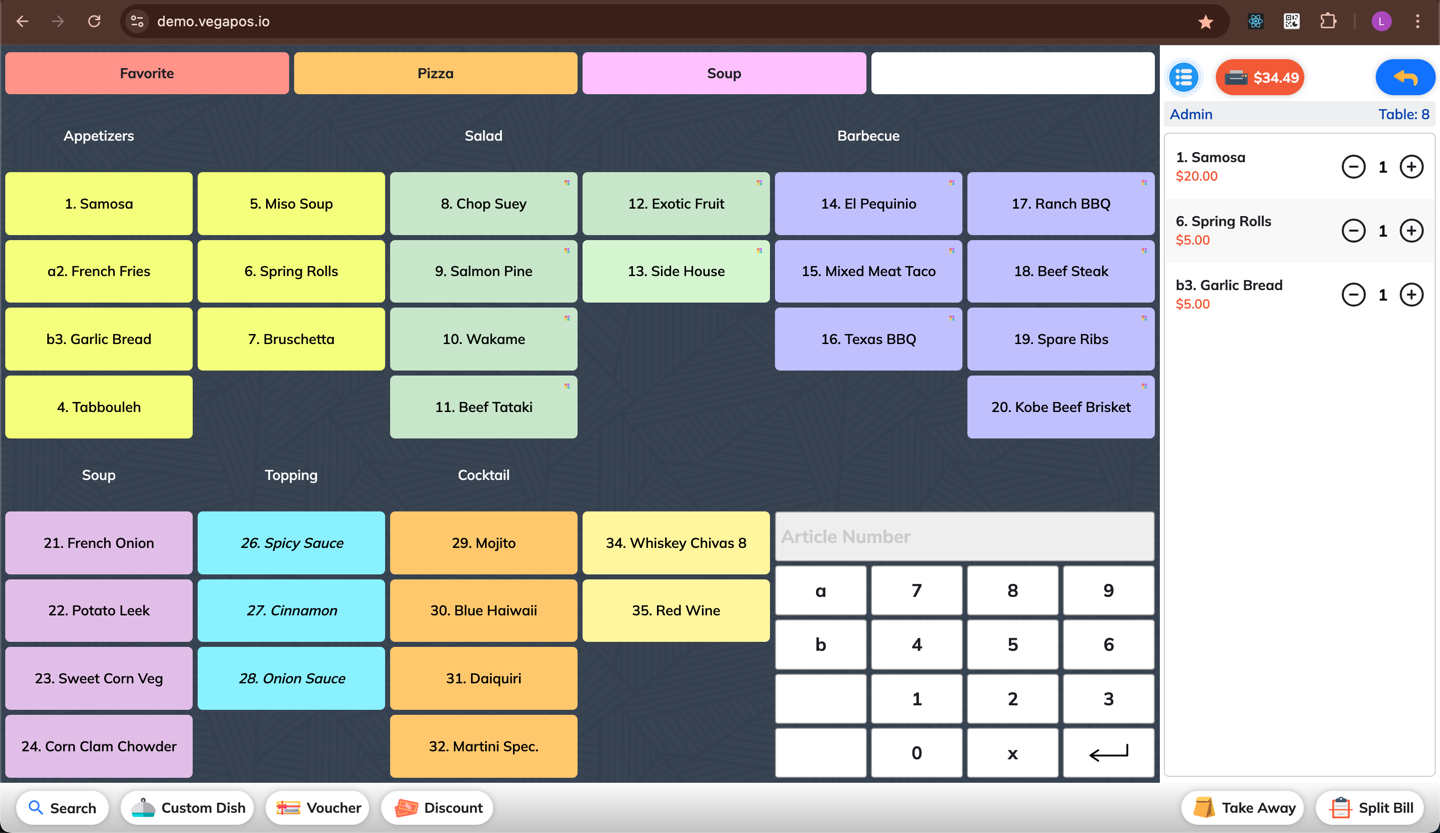
1. Open the Order Screen
Start a new order.
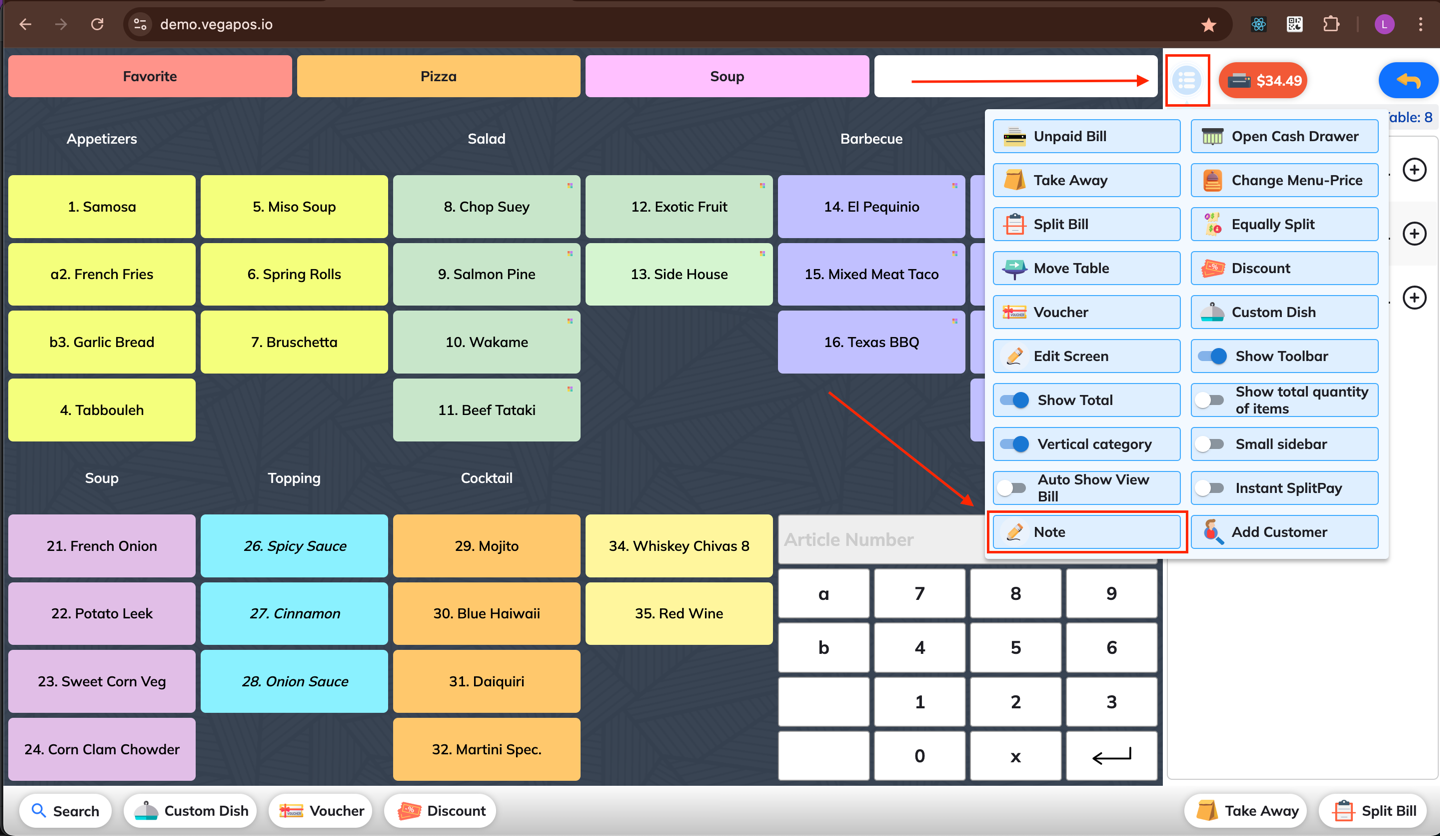
2. Open Note Function
Tap the Add Note button from the More menu.
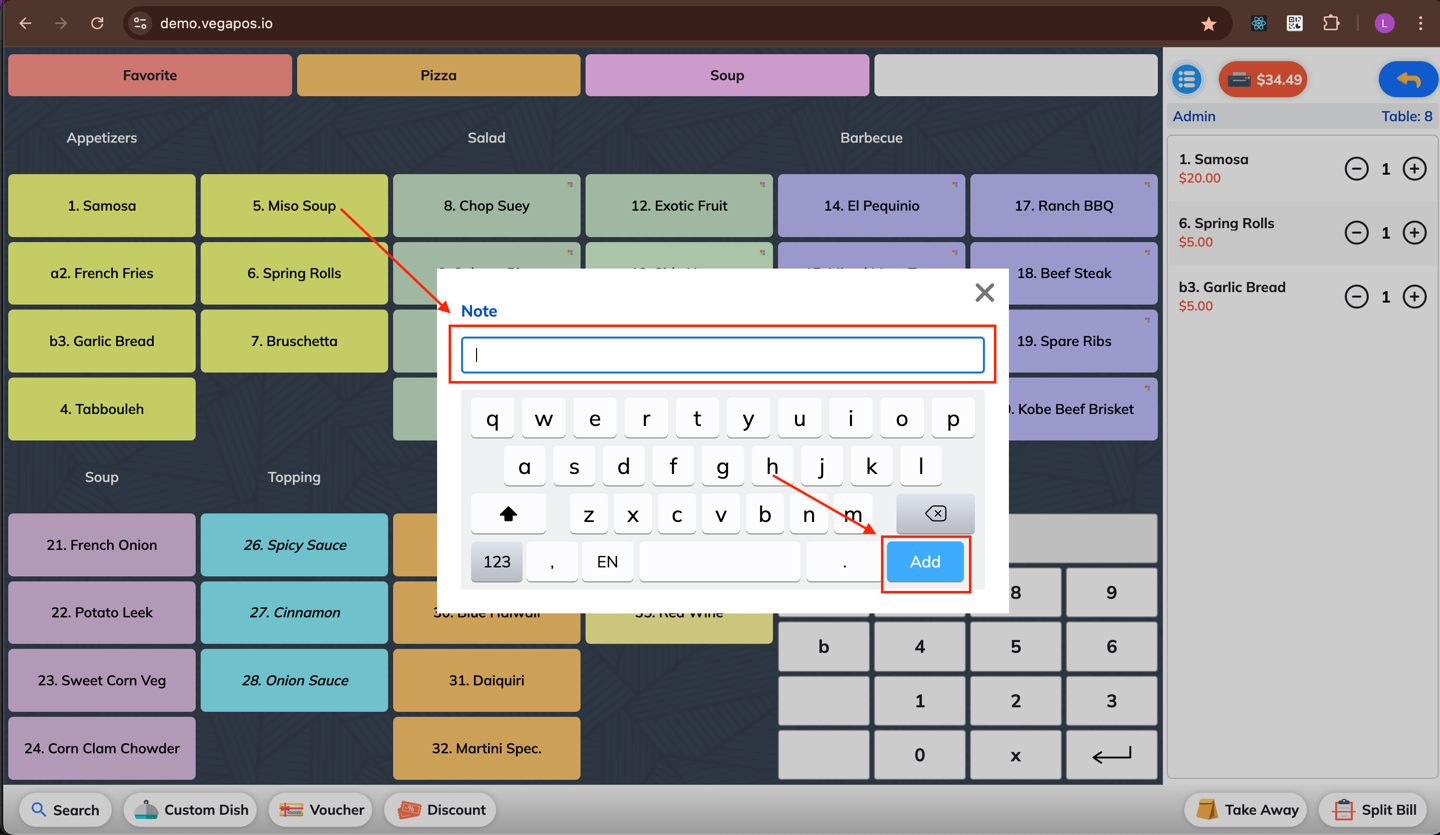
3. Enter and Add Note
Type your custom note, then press Add to attach it to the order.